How to Shorten a Link on iPhone and iPad (2026)
Copy the link, open a shortener in Safari, paste, and copy the short result. Add the shortener to your Home Screen for one-tap access. This guide covers iPhone and iPad, with a task table.
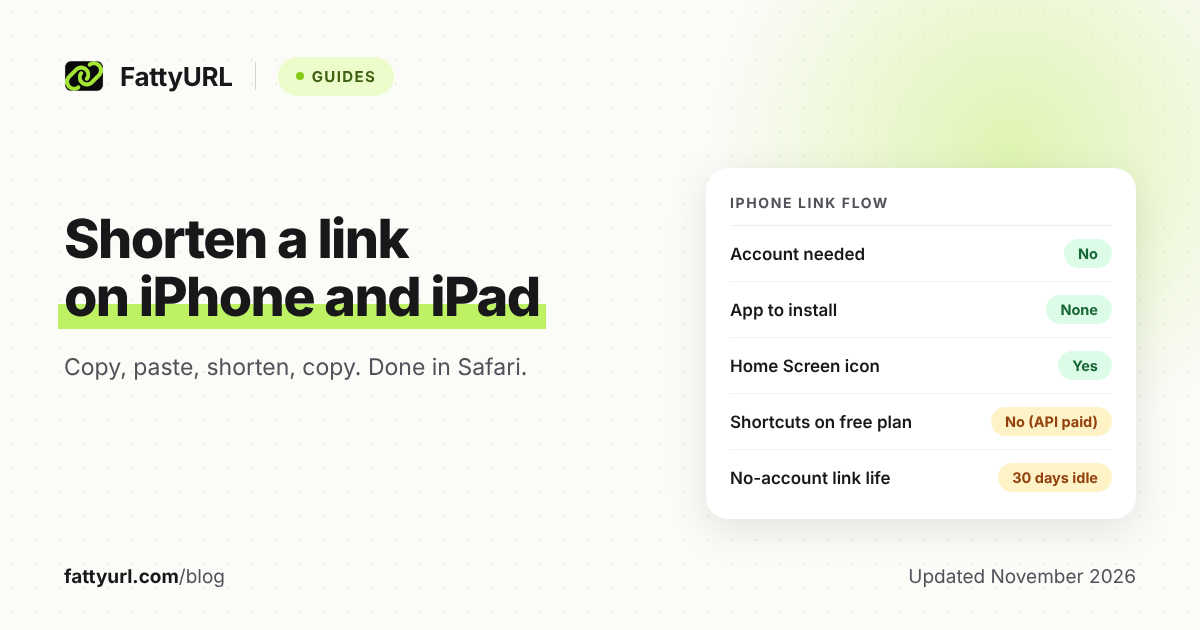
To shorten a link on an iPhone or iPad, copy the link, open a shortener in Safari, paste it and copy the short result. No app is needed. The same steps work on both devices.
This guide covers that flow and a Home Screen shortcut so the tool is one tap away. It also covers what to do when a link will not paste cleanly.
Short answer: Copy the link from Safari or an app's Share menu, open fattyurl.com in Safari, paste it, tap shorten, and copy the short link. Add the page to your Home Screen for one-tap access. FattyURL needs no account for this. Apple's support pages cited below do not document a built-in link shortener.
How do I shorten a link on my iPhone?
Copy the long link, open a shortener in Safari, paste the link into the box, and copy the short link it gives you. The flow takes a few taps and works for most links you can copy. These steps use FattyURL.
- Open the page or post you want to share. In Safari, you can copy its address from the address bar. In an app, open the Share menu and look for a copy option.
- Open fattyurl.com in Safari.
- Paste the long link into the box.
- Tap the shorten button.
- Copy the short link, then paste it into your text, bio or note.
FattyURL needs no account to shorten a link. Without an account you can make up to 10 links an hour and 50 a day per device. Links to free site and form builders, such as Google Forms, need a verified free account.
Links made without an account expire after 30 days without a click, so sign up for a free account if the link must last. See do short links expire for how other services compare.
For the generic version of these steps on any device, read how to shorten a link.
How do I put the shortener on my Home Screen?
Open the shortener in Safari, open the Share menu, and choose the option that adds the page to your Home Screen. Apple documents that Safari can add a website icon to the Home Screen so you can revisit it later.
After that, one tap on the icon opens the shortener with an empty link box. Your steps become: copy, tap the icon, paste, shorten, copy.
This works well with FattyURL because it needs no account, so there is no sign-in screen between you and the box.
The exact menu wording can change between iOS versions. If you do not see an option that mentions the Home Screen, check Apple's guide for your iOS version, linked in Sources.
Does iOS have a built-in link shortener?
Apple's support pages for Safari and Shortcuts, listed in Sources, do not describe a built-in link shortener. iPhone and iPad can copy and share links. To shorten one, use a shortener's website or app.
Apple does describe a way to find links friends share with you in Safari, through Messages, Mail and other apps. That helps you locate a link. It does not shorten it.
Third-party shortener apps exist in the App Store. You do not need one, because a shortener's website works the same way in Safari.
Can I use the Shortcuts app to shorten links?
Yes, if the shortener offers an API. A shortcut can send a request to a web service using the Get Contents of URL action. A shortener's API usually needs a key, and FattyURL's API is on paid plans only.
Apple's Shortcuts guide says the Get Contents of URL action sends a request to the address you give it. The guide also lists GET, POST, PUT, PATCH and DELETE requests. The Apple page does not say anything about API keys.
Lihi and Short.io publish ready-made iPhone shortcuts, and both ask you to paste in your own key. Lihi's page pairs its shortcut with a free Lihi account, so if you want a free shortcut, Lihi is a better fit than FattyURL.
On the free FattyURL plan, use the Home Screen route above. FattyURL's API and bulk CSV import start on the Pro plan, $9 a month or $90 a year. Check the pricing page before you decide.
Which route is quickest for each iPhone task?
Every task uses the same copy, paste, shorten, copy loop. What changes is where you copy the link from and what you do with the result. The table shows the quickest route for four common jobs.
| Task | Quickest route | Watch for |
|---|---|---|
| Link to a Safari page | Copy the address from Safari, tap your FattyURL Home Screen icon, paste, shorten | Test the short link in a new tab before sharing |
| Link from an app's Share menu | Share menu, copy the link, then paste into FattyURL | Paste only the web address, not any extra text that came with it |
| Link with tracking parameters | Paste it, delete the text from the question mark on, then shorten | Some pages need that part, so open the trimmed link first |
| Link for a printed QR code | Shorten with a free account, then make the QR code from the short link | On FattyURL, only a QR code made from a short link can be edited and counted later |
The row on tracking parameters is practical advice, not an Apple rule. The text after a question mark can carry tags like UTM values. Read how to track link clicks if you want to keep them on purpose.
How do I make a QR code from a short link on my iPhone?
Shorten the link first, then paste the short link into FattyURL's QR maker. The QR code encodes exactly what you paste, up to 1,000 characters. You can download it as PNG or SVG with no watermark.
With a free account, a QR code made from a FattyURL short link counts each scan as a click in that link's analytics. You can also change where the link points later without reprinting the code.
Without that, a QR code of a plain address is static. Our guide to making a QR code for a link has the full steps. If you only have a screenshot of a QR code, see scanning a QR code from a screenshot.
What if a short link does not work the way I expected?
Start with what you copied, because a shortener can only shorten what you paste. Check what is in the box before you tap shorten, and test the result once before you send it.
- The paste is not a clean address. Clear the box, copy again from the address bar, and make sure the box holds one address and nothing else.
- The short link does not open the page you wanted. You may have trimmed a part the page needs. Paste the full original address and shorten that instead.
- The link opens in an app, not in Safari. Try pasting the address into Safari's address bar. If the web page opens there, copy the address from Safari.
- The link stopped working after a month. A link made without an account expires after 30 days without a click. Make a new one with a free account so it does not expire.
- The short link will not post. Some platforms treat short links differently. See how short links behave on social platforms.
Before you tap a short link someone sent you, check where it goes. Our guide to whether URL shorteners are safe explains how. Short links should not be used to hide a destination.
If you want a readable ending on your link, a free FattyURL account lets you choose a custom ending of 6 to 100 characters. See custom short links.
FAQ
Can I shorten a link on an iPad the same way?
Yes. Safari on iPad works the same way: copy the link, open the shortener, paste, shorten and copy. Add the shortener to the iPad Home Screen the same way you would on iPhone.
Do I need to download an app to shorten a link on iPhone?
No. FattyURL runs in Safari and needs no account to shorten a link. Apps exist, but they are optional.
Can an iPhone Shortcut shorten links for free?
Only if the shortener lets a shortcut call it without a paid API. FattyURL's API is paid only, so on its free plan use the Home Screen route instead.
Does FattyURL show ads on short links?
Free links may show ads. Links on a paid plan never do.
Is it safe to paste any link into a shortener?
FattyURL checks every link against Google Web Risk when it is created, edited and clicked. Harmful links are paused. Still, check where a link goes before you share it.
Sources
- Apple Support: Bookmark a website in Safari on iPhone, read 7 November 2026
- Apple Support: Find links shared with you in Safari on iPhone, read 7 November 2026
- Apple Support: Bookmark favorite webpages in Safari on iPad, read 7 November 2026
- Apple Support: Request your first API in Shortcuts, read 7 November 2026
- Lihi: Shorten links with the iPhone Shortcut, read 7 November 2026
- Short.io: How to create short links from your phone (posted 29 January 2024), read 7 November 2026
- Google Analytics Help: URL builders, collect campaign data with custom URLs, read 7 November 2026
- FattyURL pricing and FattyURL promise, read 7 November 2026
Disclaimer: This article is for general information only and is not legal or security advice. It was researched and drafted with the help of AI, and its facts were checked against the sources linked above, mostly each provider's own pricing, help and policy pages. URL shorteners, QR code tools and social platforms change their plans, prices and rules often, so confirm the details on the provider's website before you choose a plan, move your links or print a QR code. FattyURL is our own product. Spotted something out of date, or a FattyURL link being misused? Tell us and we will act on it.