How to Scan a QR Code From a Screenshot or Photo (iPhone, Android, PC)
A QR code in a screenshot, a message or on your own screen can still be opened without a second phone. Here is how on iPhone, Android, Samsung and a computer.
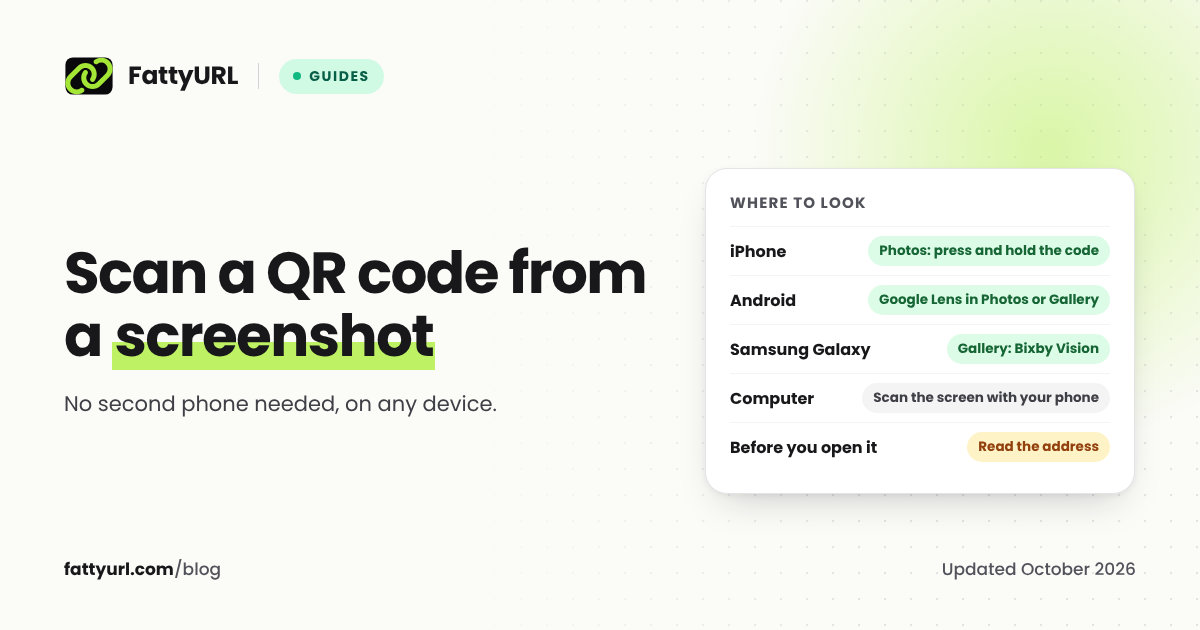
You cannot point your phone's camera at its own screen, but you do not need to. Phones can read a QR code from a screenshot or a saved photo: on iPhone through the Photos app, on Android through Google Lens, and on Samsung Galaxy phones through the Gallery. On a computer, the simplest way is to scan the screen with your phone. Whichever you use, read the link before you open it.
Short answer: Take a screenshot of the QR code. On iPhone, open it in Photos and press and hold the code. On Android, open it in Google Photos or your gallery and tap the Lens button. On Samsung, open it in Gallery and use Bixby Vision. For a code on a computer screen, point your phone's camera at the screen.
Before you start: get a clean image
Most failures come from the image, not the phone.
- Capture the whole code, with its white margin. Scanners need the empty border around the code to find it.
- Do not crop too tightly or zoom out too far. The code should fill a good part of the screenshot.
- Avoid blurry photos and screen glare. If you photograph a code on another screen, hold the phone steady and parallel to it.
iPhone: the Photos app
- Take a screenshot of the code, or save the image you were sent to Photos.
- Open it in the Photos app and press and hold on the QR code.
- Choose to open the link from the menu that appears, after reading the address it shows.
Third-party guides describe this for iOS 16 and later, and say that if nothing happens you should tap the Live Text button in the corner of the photo first, then press and hold the code again. Apple's own QR code help page covers only the Camera app and the Scan Code control in Control Center, not scanning from Photos, and the guides we found describe different gestures. If pressing and holding does nothing, tap the small badge near the trash icon, then tap the code. If it does not work on your iPhone, the Google app's Lens feature can also read a code from a saved photo.
Android: Google Lens
- Take a screenshot of the code, or save the image.
- Open it in Google Photos or your gallery app and tap the Lens button.
- Tap the link Lens finds in the code, after reading the address.
Google's Pixel help says "You can also use Google Lens to scan QR codes." On some Pixel and Samsung Galaxy phones, Circle to Search can also read a code on screen without a screenshot: touch and hold the home button or navigation handle and circle the code. Google says Circle to Search is available on Pixel 6 and later; its help page does not mention QR codes, but Engadget reports it reads them on select Pixel and Galaxy models.
Samsung Galaxy: Gallery and Bixby Vision
Samsung's support pages describe this route:
- Take a screenshot of the code.
- Open it in the Gallery app and tap the Bixby Vision button.
- Choose to open the link in your browser, or copy it.
Samsung notes that "Bixby Vision is not available on all devices," and its support pages say steps vary by model and Android version. Google Lens, above, also works on Galaxy phones.
On a computer: Windows or Mac
The most reliable method is the simplest: open the image on your computer and point your phone's camera at the screen. It works on any computer and any phone that can scan QR codes.
If you do not have a phone to hand, Chrome on a computer can send an image to Google Lens: right-click the image and choose Search with Google Lens. Google's help page for this does not mention QR codes, so treat it as a fallback rather than a sure thing.
Check the link before you open it
QR codes in screenshots often arrive through messages and emails, which is exactly where scams travel. Before you open one:
- Read the address the scanner shows. Check the domain, the part just before the first single slash, letter by letter.
- Be wary of short links from senders you do not know, because they hide the destination.
- Never enter a password or payment details on a page you reached from an unexpected QR code.
Our guide on whether URL shorteners are safe shows more ways to check a link.
If the code still will not scan
The image may be the problem: a cropped margin, low contrast, a damaged print, or a code that was too small to begin with. Our guide to why QR codes stop working covers each cause. If it scans but opens an error page, the link inside has probably expired or moved, which the same guide also covers.
FAQ
Can I scan a QR code that is on my own phone screen?
Yes. Take a screenshot, then open it in Photos on iPhone, Google Photos or the gallery with Google Lens on Android, or Gallery with Bixby Vision on Samsung.
How do I scan a QR code from a photo on iPhone?
Open the photo in the Photos app and press and hold on the code, then choose to open the link. If nothing happens, tap the Live Text button first and try again.
How do I scan a QR code on my computer screen?
Point your phone's camera at the screen. On a computer without a phone, Chrome's Search with Google Lens may read it, but Google does not document QR support for it.
Why can't my phone read the QR code in my screenshot?
The screenshot may cut off the code's white margin, be too small or blurry, or show a code that is damaged or low in contrast. Take a new screenshot with the whole code and its border, zoomed in.
Is it safe to scan a QR code from a screenshot?
Scanning only reads the link. The risk is the page it opens. Read the address before you open it, and do not enter passwords or payment details on a page you did not expect.
Sources
- Apple Support: scan a QR code with iPhone or iPad
- iPhone Life: scan a QR code sent in a text message or email
- Engadget: You can easily scan QR codes that are already on your phone (13 July 2026)
- Google Pixel Help: scan QR codes, Circle to Search
- Samsung UK: scan a QR code on your Galaxy phone or tablet, Samsung Philippines: scan a QR code on a Galaxy device
- Google Chrome Help: search with Google Lens
Disclaimer: This article is for general information only and is not legal or security advice. It was researched and drafted with the help of AI, and its facts were checked against the sources linked above, mostly each provider's own pricing, help and policy pages. URL shorteners, QR code tools and social platforms change their plans, prices and rules often, so confirm the details on the provider's website before you choose a plan, move your links or print a QR code. FattyURL is our own product. Spotted something out of date, or a FattyURL link being misused? Tell us and we will act on it.