How to Shorten a Google Docs, Sheets or Slides Link and Make a QR Code (2026)
To shorten a Google Docs, Sheets or Slides link, set General access to Anyone with the link, click Copy link and paste it into a shortener. Here is what each link type shows people, and how to make a QR code.
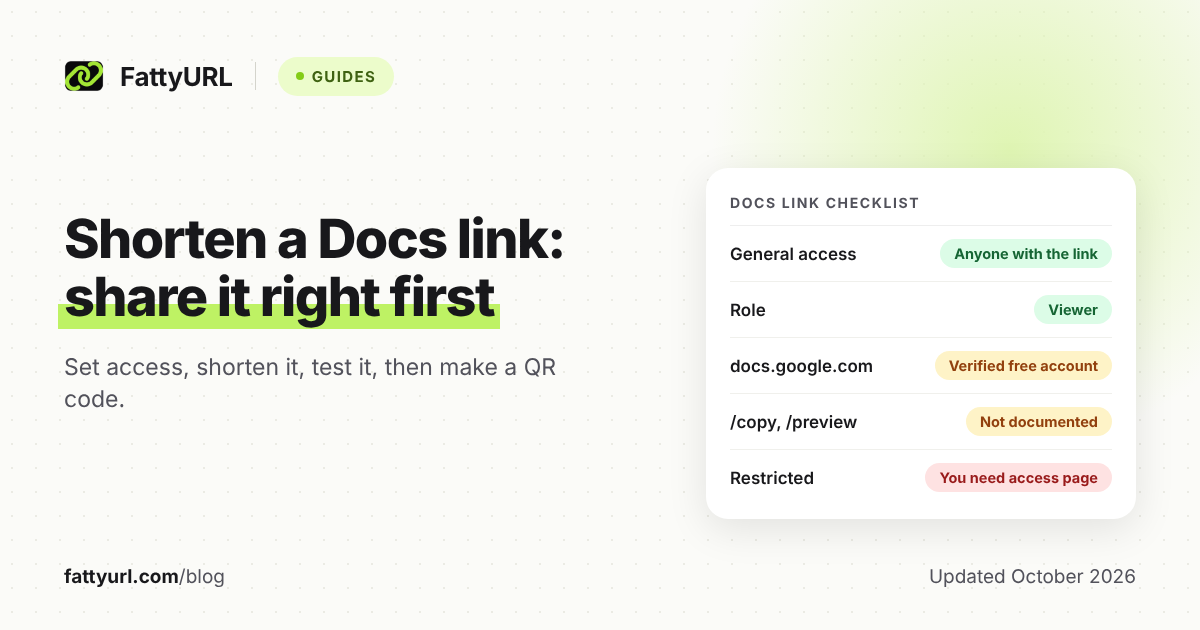
To shorten a Google Docs, Sheets or Slides link, first make the file open to the people you're sending it to. Click Share, set General access to "Anyone with the link," choose Viewer, then click Copy link and paste it into a URL shortener.
The short link only forwards people to Google, and Google's sharing settings still decide who gets in. On FattyURL, links to docs.google.com, which covers Docs, Sheets and Slides, need a verified free account. Other shorteners set different rules, compared below.
Short answer: In the file, click Share, set General access to Anyone with the link, pick Viewer, and click Copy link. Paste the whole link into a shortener and test it in a private window. On FattyURL, Docs, Sheets and Slides links need a verified free account, which also lets you repoint the link to next term's copy.
How do you share a Google Doc, Sheet or Slides file by link?
Use the Share box, which works the same way in Docs, Sheets and Slides. One Google help page covers all three: choose who can open the file, choose what they can do, then copy the link. Do this before you shorten anything, because a short link can't grant access.
On a computer, follow Google's sharing steps, then shorten and test:
- Select the file in Google Drive, or open it, and click Share.
- Under General access, click the Down arrow and choose Anyone with the link.
- Choose a role: Viewer, Commenter or Editor.
- Click Copy link, then Done.
- Paste the whole link into a shortener, such as the box on the FattyURL home page, signed in to a verified free account.
- Open the short link in a private browser window that isn't signed in to Google. That's what a stranger will see.
On Android, Google's steps are: tap Share, tap Change under General access, select Anyone with the link, choose a role, and tap Copy link.
Pick the role with care. Viewers can view but not comment or edit, and commenters can also comment. Editors can change the file and, by default, share it and change its permissions.
Anyone with the link lets people open the file without signing in. Google also caps editing at 100 open tabs or devices at once, so an Editor link for a whole school can hit the limit.
Google's help also lists a Public option, which lets anyone find the file through a Google search and open it. A class handout doesn't need it: Anyone with the link is enough.
Why does my Google Docs link say "You need access"?
Because General access is still Restricted, so only people you added can open the file. People you haven't added see a "You need access" page with a Request access option, and each request emails you. Switch General access to Anyone with the link, and the same link, short or long, starts working.
School and work accounts add a catch: Google says they might not be able to share outside the organization. Your choices may include an option limited to "anyone in your organization," within limits your administrator sets.
That's how a link from a school account can work for students and fail for parents using personal Gmail. Ask your administrator before you print it. A student who sees "You need access" on a file shared with their school email should check which account they're signed in to.
When should you use "Publish to the web" instead?
Publish when many people need a clean, read-only page. Google's sharing help suggests it when multiple people need to open a file. Published Docs and Sheets show "a version with no toolbar," Sheets viewers can't see formulas, and Slides appear view-only or as a full-screen presentation.
- In the file, go to File, then Share, then Publish to web.
- In Sheets, choose the entire spreadsheet or single sheets, and a format. In Slides, choose how quickly the slides advance.
- Click Publish.
- Copy the URL. Shorten it if people will type it or scan it.
Your edits reach the published version while Automatically republish when changes are made is checked; Slides can't turn that off. To take a file down, open Publish to web, then Published content & settings, and click Stop publishing.
Publishing is separate from sharing: Google says you must stop publishing to remove a file from the web. It also warns you to be careful with private or sensitive information. Work and school administrators can turn publishing off.
Which Google Docs link endings are official?
Only some: Google's own pages show the standard /edit address and document the Share and Publish to the web links. Swapped endings such as /view, /preview, /copy and /template/preview don't appear in the Google help pages we checked. Replug's Google Drive guide describes /copy and /preview; no Google page we found does.
Checked 28 October 2026 against the Google help pages and developer guides listed in Sources.
| Link or setting | What the person who opens it sees | Google documents it? |
|---|---|---|
| Copy link, General access Restricted | A "You need access" page with a Request access option, unless you added them | Yes, Drive help |
| Copy link, Anyone with the link, Viewer | The file, without signing in; they can't comment or edit | Yes, sharing help |
| Copy link, Anyone with the link, Commenter | The file; they can comment but not edit | Yes, sharing help |
| Copy link, Anyone with the link, Editor | The file, which anyone holding the link can edit | Yes, sharing help |
| Copy link, your organization (work or school) | The file, for people in your organization, within your administrator's limits | Yes, Drive help |
| Publish to web link, Docs or Sheets | A version with no toolbar; Sheets viewers can't see formulas | Yes, publishing help |
| Publish to web link, Slides | A view-only version or full-screen presentation mode | Yes, publishing help |
| Address ending in /edit | The file itself, with the access set above | Yes, in Google's Docs, Sheets and Slides API guides |
| ?usp=sharing on the end | Google doesn't say what it does | No |
| /view or /preview in place of /edit | Google doesn't say | No |
| /copy in place of /edit | Google doesn't say | No; Google documents the Make a copy command instead |
| /template/preview | Google doesn't say | No; Google documents its template gallery instead |
For a copy per reader, use Google's documented routes. Readers can choose File, then Make a copy, and Google Classroom offers "Make a copy for each student" until you post the assignment.
In Sheets links, keep any gid= number. Google's Sheets API guide shows it's the ID of one sheet, or tab, inside the file.
Do you need an account to shorten a Google Docs link?
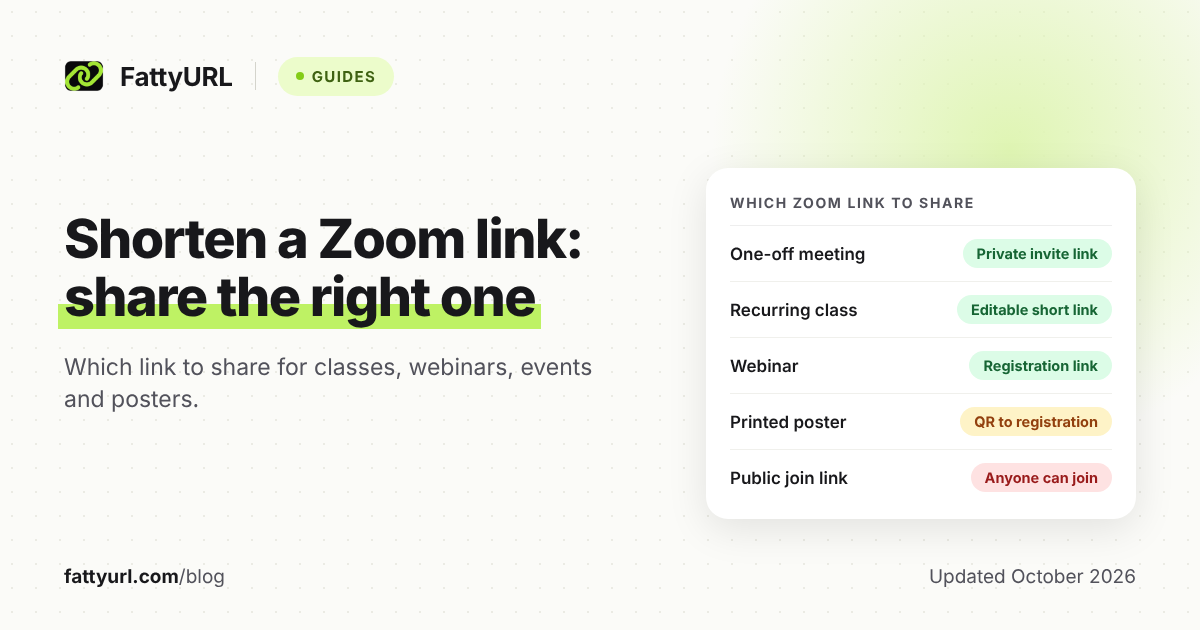
On FattyURL, yes: links to docs.google.com, which covers Docs, Sheets, Slides and Forms, need a verified free account. It's a safety rule FattyURL applies to free site and form builders, such as sites.google.com and forms.office.com. Links that start with drive.google.com need no account.
Every FattyURL link is checked against Google Web Risk when it's created, edited and clicked. On a free account, links never expire and you can change where they point. You also get custom endings of 6 to 100 characters, CSV export and click analytics.
Free links may show ads; links on a paid plan never do. For Drive files and folders, see our guide to shortening a Google Drive link.
Other shorteners draw the line elsewhere. Bitly's support page says it "now requires all users to create an account." TinyURL's own guide describes links made without an account, kept only in your browser, that need a paid plan to edit.
So for a one-off link you'll never edit, a no-sign-up guest link elsewhere is quicker, and FattyURL won't make one for docs.google.com. Weigh the two best-known options in our Bitly vs TinyURL comparison.
When should you shorten a Google Docs link?
When people must type the link, scan it, or keep using it after the file changes. On a screen, linked words work just as well: Insert, then Link, puts any address behind text you choose in Docs, Sheets or Slides. In print or on a projected slide, a short link wins.
- A printed class handout. Students type what they see, and a Docs address carries a long file ID. A custom ending named after the unit is easier to type and says what it opens.
- A QR code on a slide. Denso Wave's QR code reference says more data needs more modules, the black and white dots. A short link keeps the code simpler than the full Docs address does.
- One link you reuse every term. Print it once, then point it at next term's copy when the time comes. Old handouts and printed codes follow the link.
How do you make a QR code for a Google Doc?
Make the QR code from a short link, not the raw Docs address. Set the file to Anyone with the link first, because the code only stores an address and Google still checks access. A short link you control also counts scans and lets you swap the file later without reprinting.
- In Share, set General access to Anyone with the link, choose Viewer, and click Copy link.
- Sign in to a verified free FattyURL account and shorten the link.
- Make the QR code from the short link. FattyURL exports PNG or SVG, in any colors, with no watermark.
- Scan it with a phone that isn't signed in to your Google account.
- Print it, or add the image to your slide.
Each scan opens the short link, so it counts as a click in that link's analytics. Learn what those numbers can and can't tell you in our guide to tracking QR code scans.
A QR code holding the full Docs address also works, but it's tied to that one file forever. FattyURL's QR codes are static; the flexibility comes from the short link inside.
Sharing a fixed PDF rather than a live Doc? See how to make a QR code for a PDF.
How do you point the same short link at next term's copy?
Either keep editing the same file, or make a copy and repoint the short link. Editing never changes a Doc's address, because Google keeps a file's ID for its whole life. A copy is a separate file with its own ID, so it gets a new link, and you update the short link to match.
- Open last term's file and choose File, then Make a copy. Name it for the new term and choose where to save it.
- Open the copy, click Share, and set General access again. Google's copy steps don't mention sharing settings, so check them.
- Click Copy link. In your FattyURL account, edit the short link's destination to the new link.
- Open the short link in a private window to confirm the new copy loads.
Editing a destination is a free-account feature, so last term's printed link now opens this term's file.
FAQ
Does Google have its own shortener for Docs links?
Not for Docs, Sheets or Slides. Google Forms has a Shorten URL checkbox, covered in our guide to shortening a Google Form link. Google's sharing help for the other three describes no such option.
Can I delete ?usp=sharing from a Google Docs link?
Google doesn't document what usp=sharing does. Its Docs and Slides API guides show addresses that end at /edit. Since a shortener hides the address anyway, paste the link exactly as Copy link gives it.
Can I change a Google Docs link to something readable?
Not through Google: the address carries the file's unique ID, which stays the same for the file's life, even if you rename it. A short link with a custom ending is the readable version; for the basics, see how to shorten any link.
Do people need a Google account to open my shared Doc?
Not with Anyone with the link: Google says anyone who has the link can open the file without signing in. That includes anyone the link is forwarded to, so keep private files Restricted and add people by email.
Can I see who opened my Google Doc?
Only sometimes: Google's view history covers Docs, Sheets and Slides. But if a work or school account doesn't own the file, no one can see that history. A short link counts opens instead, and a free FattyURL account shows clicks, unique visitors, country, device and more.
Sources
- Google Docs Editors Help: Share files from Google Drive (computer and Android versions; General access options, roles, 100-tab editing limit, publishing for many people), read 28 October 2026
- Google Drive Help: Share and manage access to files and folders (Restricted, Anyone with the link, your organization), read 28 October 2026
- Google Drive Help: Learn more about access to Google files (You need access, Request access), read 28 October 2026
- Google Docs Editors Help: Can't edit a file (Share button at the top right of an open file), read 28 October 2026
- Google Docs Editors Help: Make Google Docs, Sheets, Slides & Forms public (Publish to the web), read 28 October 2026
- Google Docs Editors Help: Create, view, or download a file (Make a copy), read 28 October 2026
- Google Docs Editors Help: Use templates, read 28 October 2026
- Google Docs Editors Help: Work with links & bookmarks, read 28 October 2026
- Google Docs Editors Help: Publish & share your form with responders (Shorten URL), read 28 October 2026
- Google Docs Editors Help: View the activity on your Google Docs, Sheets & Slides, read 28 October 2026
- Google Classroom Help: Create an assignment (Make a copy for each student), read 28 October 2026
- Google for Developers: Docs API document concepts, Sheets API concepts, Slides API overview (example addresses) and Drive API files overview (unique, stable file IDs), read 28 October 2026
- DENSO WAVE: Information capacity and versions of the QR Code, read 28 October 2026
- Bitly Support: account requirement, read 28 October 2026
- TinyURL: I created a TinyURL link without an account (18 August 2026), read 28 October 2026
- Replug: How to shorten a Google Drive link (edited 11 October 2026; cited only for what it describes), read 28 October 2026
- FattyURL pricing, read 28 October 2026
Disclaimer: This article is for general information only and is not legal or security advice. It was researched and drafted with the help of AI, and its facts were checked against the sources linked above, mostly each provider's own pricing, help and policy pages. URL shorteners, QR code tools and social platforms change their plans, prices and rules often, so confirm the details on the provider's website before you choose a plan, move your links or print a QR code. FattyURL is our own product. Spotted something out of date, or a FattyURL link being misused? Tell us and we will act on it.