How to Shorten a Google Form Link (and Make a QR Code for It)
Three ways to share a Google Form with a short link: Google's own forms.gle link, a readable custom link that counts clicks, and a QR code for print.
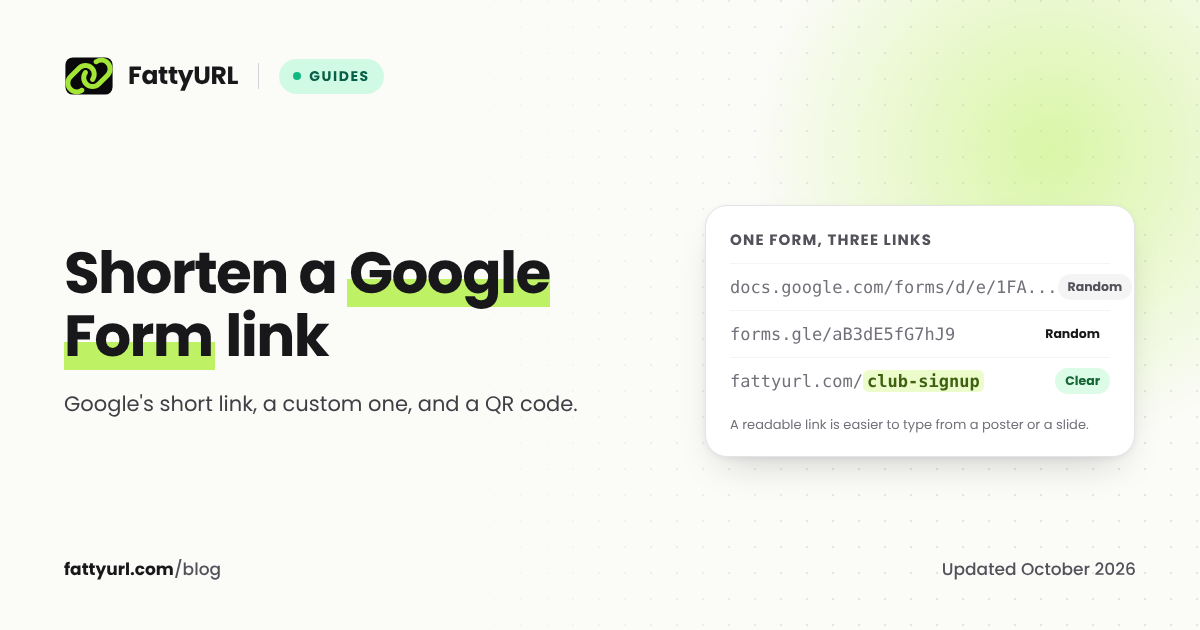
Google Forms can shorten its own links: once the form is published, tick Shorten URL and copy the link. Google's short links normally start with forms.gle. If you want a link people can read and type, such as one on a poster, or you want to know how many people opened the form, make a custom short link instead, and turn either one into a QR code.
Short answer: Publish the form, find the box next to Shorten URL in the form's link options, tick it, and click Copy. For a readable link that counts clicks, shorten the full responder link with a custom ending in a free URL shortener account. For print, make a QR code from the short link.
Before you start: copy the right link
A Google Form has two addresses, and sharing the wrong one is the most common mistake.
- The editor's address is the one in your browser while you build the form. It ends in
/edit, and it opens only for people you have added as editors. Everyone else is asked to request access. - The responder link is the one respondents need. Google gives you it after you publish the form.
Always share the responder link, or a short link that points to it.
Way 1: Google's own short link
Google's help center describes it this way for the current version of Forms:
- Publish the form. At the top right, click Publish.
- Find the link options. Google lists three ways to copy the responder link: from Published, from Share, or from the preview. It also says you can copy a short link "once you publish the form" by ticking the box next to Shorten URL, but it does not say which window holds the box. Some guides place it in the Send window, under the link icon, so check Send and Share on your own screen.
- Tick Shorten URL and click Copy.
- Share the link. Google's short links normally start with
forms.gle/, although Google's help page does not name the domain.
Google's short link is free and trusted, but it has two limits: you cannot choose the ending, and Google Forms counts responses, not how many people opened the form.
Way 2: a readable custom link you can track
A custom link such as fattyurl.com/club-signup is easier to read on a slide and to type from a poster, and a short link counts every click, so you can compare how many people opened the form with how many submitted it.
On FattyURL:
- Create a free account and verify your email. Links to Google Docs and Google Forms need a verified free account on FattyURL. Free form builders are a favorite of phishing kits, and an account keeps abusers out.
- Paste the full responder link on the homepage. Use the long
docs.google.com/forms/...link rather than the forms.gle one, so people go through one redirect, not two. - Type a custom ending, such as
club-signup, and create the link. - Share it, then check the clicks in your dashboard alongside the response count in Google Forms.
If you later replace the form with a new one, change the short link's destination and every shared copy, including printed ones, opens the new form. Links in a free account never expire, as our promise page states.
Disclosure: FattyURL is our product. Any shortener that supports custom endings and click data works the same way; see how to make a custom short link.
Way 3: a QR code for your Google Form
Google's Forms help page does not list a QR code option, so use a QR code generator:
- Copy the short link from Way 1 or Way 2.
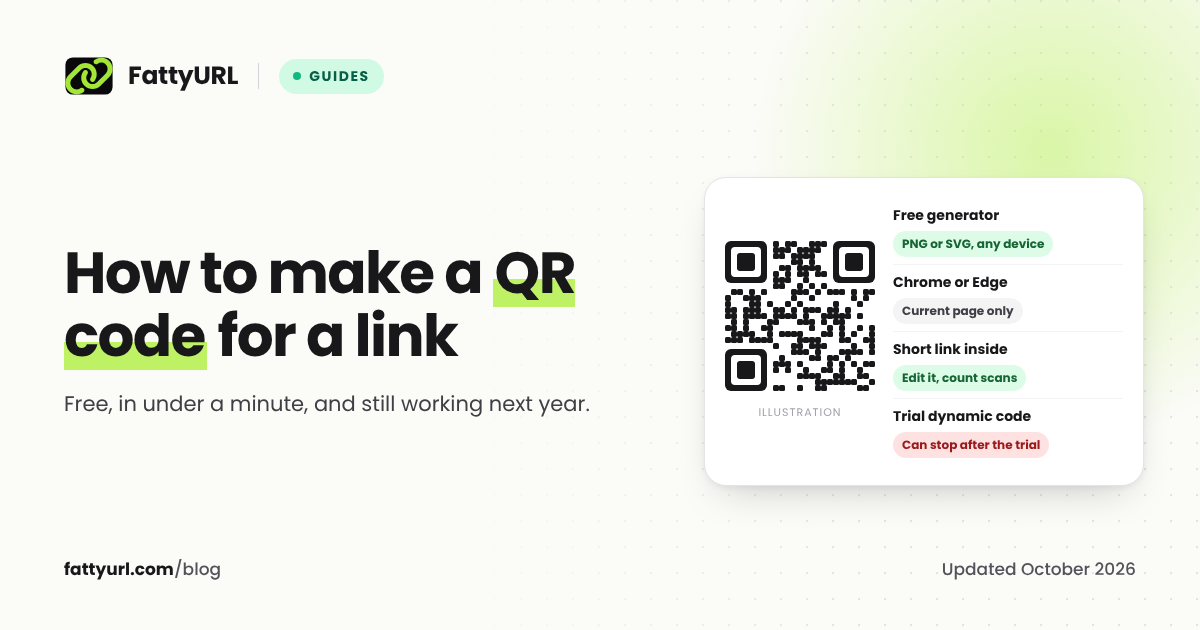
- Paste it into a free QR code generator, such as FattyURL's, where you can choose colors and download an SVG. If you made a FattyURL short link, its QR button also gives you a plain PNG.
- Download it. PNG for slides and screens, SVG for print.
- Test it with two phones before you print.
Make the code from a short link you can edit, not the raw responder link. If the form changes, you update the link instead of reprinting every sheet. Our guide on how to make a QR code for a link covers sizing and print checks.
Why people cannot open your Google Form link
| What people see | Likely cause | Fix |
|---|---|---|
| "You need permission" or a request-access page | You shared the editor's /edit address |
Share the responder link instead |
| A message that the form is no longer accepting responses | Responses are switched off | Turn responses back on in the form |
| A sign-in page, or a message that only your organization can respond | The form is limited to signed-in users or to your organization | Change who can respond in the form's settings, if the form should be public |
| A page not found error | The form was deleted, or the link was copied incompletely | Copy the responder link again |
FAQ
How do I get a short link for my Google Form?
Publish the form, tick the box next to Shorten URL in the form's link options, and click Copy. The short link normally starts with forms.gle/.
Can I make a custom Google Form link?
Not in Google Forms itself: Google's short link has a random ending. To choose the ending, shorten the responder link with a URL shortener that supports custom slugs. On FattyURL that needs a free account with a verified email, because links to Google Forms do.
How do I make a QR code for a Google Form?
Copy the form's responder link or short link and paste it into a QR code generator, then download the image. Google's Forms help page does not list a built-in QR option.
Can I see how many people opened my Google Form?
Google Forms shows responses, not visits. Share the form through a short link with click data and compare the clicks with the number of responses.
Why does my Google Form link ask people to request access?
You probably shared the address from your browser while editing the form. It ends in /edit and only works for editors. Share the responder link instead.
Sources
- Google Forms Help: publish and share your form with responders, also in Google Drive Help
- FattyURL promise
Disclaimer: This article is for general information only and is not legal or security advice. It was researched and drafted with the help of AI, and its facts were checked against the sources linked above, mostly each provider's own pricing, help and policy pages. URL shorteners, QR code tools and social platforms change their plans, prices and rules often, so confirm the details on the provider's website before you choose a plan, move your links or print a QR code. FattyURL is our own product. Spotted something out of date, or a FattyURL link being misused? Tell us and we will act on it.