LinkedIn QR Code: Where to Find It and When to Make Your Own (2026)
LinkedIn's built-in QR code lives in the mobile app. Here is where to find it, how to scan one, and when a custom QR code is better for cards, badges and slides.
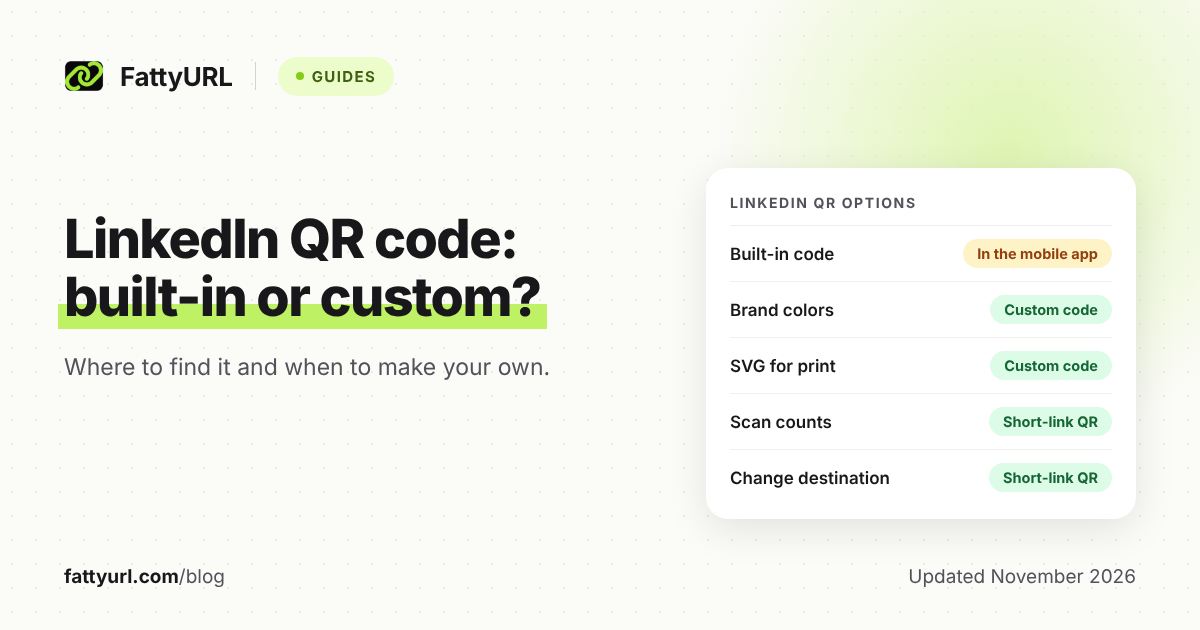
LinkedIn's mobile app gives you your own QR code, and it is a quick way to share your profile in person. For a printed card, a badge or a slide, a custom QR code often works better because you control colors, file format and tracking.
This guide covers where to find LinkedIn's own code, how to scan one, and when to make your own instead.
Short answer: LinkedIn's mobile app can show a QR code for your profile, and it can scan other members' codes. Look in your profile or the search bar area of the app to find yours. For print, brand colors, an SVG file or scan counts, make your own code in a QR maker such as FattyURL.
Where is my LinkedIn QR code?
Your LinkedIn QR code is in the LinkedIn mobile app. LinkedIn's app page says each member has a unique code, and a member who scans yours is taken to your profile. Open your profile or the search bar area in the app to find it.
LinkedIn launched the feature in June 2018. Its announcement put a QR code icon in the search box on the Home tab, with a "My code" tab for your own code. Menus may have moved since, so use that as a starting point.
- Open the LinkedIn app on your phone and sign in.
- Check the search bar area at the top of the app, or your profile, for the QR code.
- Open your own code to show it on screen.
- To send it instead, share it from the app by message, email or another app.
If you cannot find it, update the app and check again. If it is still missing, search LinkedIn Help for "QR code", or make your own code from your profile link as shown below.
How do I scan a LinkedIn QR code?
Use the QR scanner in the LinkedIn app and point your phone's camera at the other person's code. LinkedIn says scanning a member's code takes you to their profile, so you can connect with them from there. Its 2018 launch post said you could also upload a QR code image from your phone.
On an iPhone, the built-in Camera app also works. Apple's iPhone User Guide says Camera can scan QR codes that link to websites and apps.
Can I get a LinkedIn QR code on desktop?
LinkedIn presents its QR code as a feature of its mobile app, so plan on using your phone. On a laptop you have two choices: open the app on your phone, or make your own code from your profile link.
To get that link, open your profile in a browser and copy the address from the address bar. Paste it into a QR maker. If you want a shorter, tidier address first, see how to shorten a LinkedIn URL.
When is a custom LinkedIn QR code better?
Make your own code when you need control over the file, the colors, the page it opens or the scan count. LinkedIn's app page covers sharing and scanning its code, but does not mention colors, file types or scan counts. A custom code lets you decide each of those.
- Print: an SVG file stays sharp at any size on a card, banner or poster.
- Brand colors: pick colors that match your slide deck or card.
- Other LinkedIn pages: a company page, a single post, a newsletter or an event page, since each has its own link.
- Scan counts: a QR code made from a FattyURL short link (free account) counts each scan as a click.
- Fixing mistakes: with a free account, you can change where that short link points without reprinting.
LinkedIn's QR code vs a custom QR code: which should I use?
Use LinkedIn's code for quick, live handshakes on your phone. Use a custom static code for print when you never expect the link to change. Use a QR code made from a short link when you want scan counts or the option to edit the destination later.
Checked 14 November 2026. The LinkedIn row comes from LinkedIn's app download page, which does not cover colors, file types or scan counts. The FattyURL rows describe FattyURL's own QR maker.
| Option | Colors and print file | Scan counts and editing |
|---|---|---|
| LinkedIn built-in code | Colors and file type not stated by LinkedIn. You can share the code by message, email or another app. | Scan counts not stated by LinkedIn. A scan opens your profile. |
| Custom static QR (FattyURL) | PNG or SVG, any colors, no watermark | No scan counts. Encodes exactly the link you give, so you cannot change it later. |
| QR from a short link (FattyURL, free account) | PNG or SVG, any colors, no watermark | Each scan counts as a click. You can change the destination later. |
For how static and editable codes differ over time, read whether QR codes expire.
How do I make a custom LinkedIn QR code on FattyURL?
Copy the LinkedIn link you want, paste it into FattyURL's QR maker, pick your colors, and download a PNG or SVG. You do not need an account, and there is no watermark. The code is static: it encodes exactly the link you give, up to 1,000 characters.
- Copy your profile, company page, post or newsletter link from LinkedIn.
- Go to FattyURL and paste the link into the QR code maker.
- Choose colors. Keep strong contrast between the dark and light parts.
- Download SVG for print or PNG for slides and screens.
- Scan the finished code with two different phones before it goes anywhere.
For the full walkthrough, see how to make a QR code for a link.
How do I count scans on a LinkedIn QR code?
Shorten your LinkedIn link in FattyURL with a free account, then make the QR code from that short link. Each scan opens the short link and counts as a click in its analytics, which show clicks over time, country, device and referrer.
That also lets you change where the link points later. A conference badge printed today can send people to a new page next month.
Details are in how to track QR code scans. Free links may show ads; links on a paid plan never do.
Where should I put my LinkedIn QR code?
Put it where people already have a phone out and a reason to connect. Good spots are the back of a business card, a name badge, your closing slide or a printed handout. Give it room and a short label such as "Connect on LinkedIn."
Size matters on print. Our guide on QR code size for print covers minimums and scanning distance. For a code that saves your phone number and email instead, see how to make a vCard contact QR code.
FAQ
Does LinkedIn give you a QR code?
Yes. LinkedIn's app page says each member has a unique QR code that other members can scan to reach their profile. Look for it in the mobile app, around the search bar or on your profile.
Can I put my LinkedIn QR code on a business card?
Yes. LinkedIn lets you share the built-in code from the app, and its 2018 launch post said you could save it to your photos. For print, a custom SVG scales cleanly, uses your colors, and should be test-scanned first.
Can I make a QR code for a LinkedIn company page or post?
Yes. Copy the page or post link and turn it into a code in any QR maker, including FattyURL. Check where the link goes before you print it.
Will my QR code break if my LinkedIn link changes?
A static code always opens the exact link inside it. If your profile address changes, the code keeps opening the old one, so make a new code. A code made from a FattyURL short link, with a free account, lets you edit the destination without reprinting.
Can I see who scanned my LinkedIn QR code?
FattyURL counts scans, not names. You see totals, country, city, device and referrer for codes made from a short link. LinkedIn's app page does not say whether its own code reports scans.
Sources
- LinkedIn: Download the LinkedIn app (QR code section) (read 14 November 2026)
- LinkedIn blog: QR code launch announcement (June 2018) (read 14 November 2026)
- Apple iPhone User Guide: Scan a QR code with your iPhone camera (read 14 November 2026)
- FattyURL pricing and plans (read 14 November 2026)
- FattyURL promise page (read 14 November 2026)
Disclaimer: This article is for general information only and is not legal or security advice. It was researched and drafted with the help of AI, and its facts were checked against the sources linked above, mostly each provider's own pricing, help and policy pages. URL shorteners, QR code tools and social platforms change their plans, prices and rules often, so confirm the details on the provider's website before you choose a plan, move your links or print a QR code. FattyURL is our own product. Spotted something out of date, or a FattyURL link being misused? Tell us and we will act on it.