How to Shorten a Link on Android Without an App (2026)
Shorten a link on your Android phone in the browser, with no app and no sign up. Paste, tap Shorten, then copy, share or make a QR code. Includes a copy vs share vs QR table.
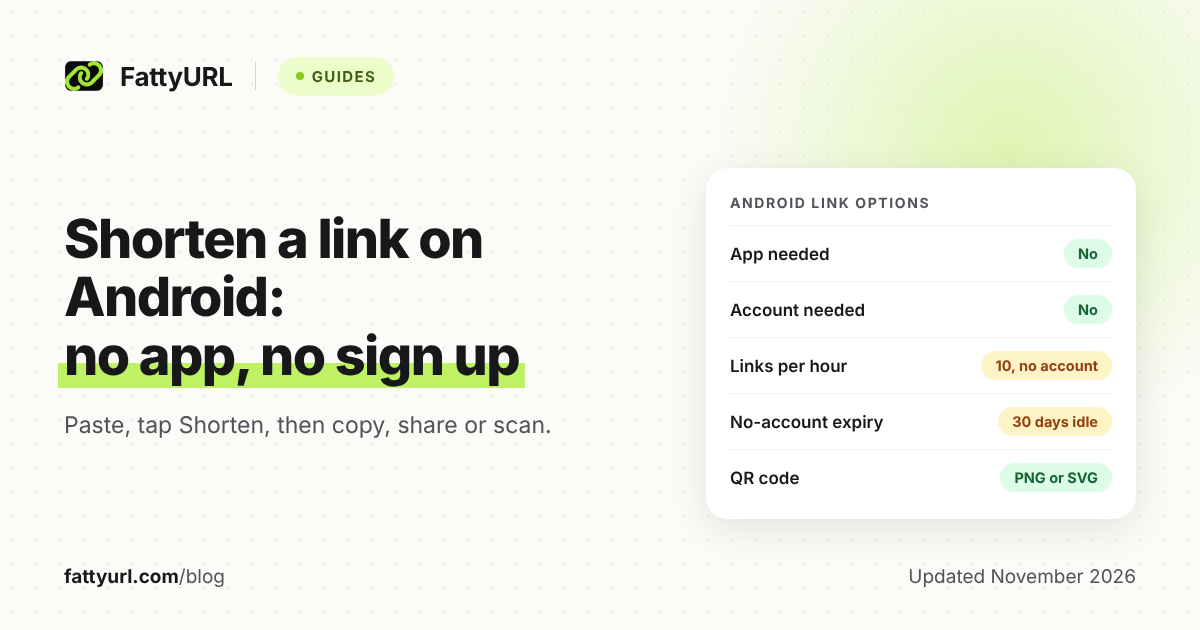
You can shorten a link on an Android phone in your browser, with no app and no account. Paste the long link into a web-based shortener, tap the shorten button, then copy or share the result.
Most pages that rank for this question push you to install an app. You do not need one, and this guide shows the browser route with FattyURL, plus when to copy, share or use a QR code.
Short answer: Open FattyURL in Chrome on your phone, paste the long link, tap Shorten, and copy or share the short link. No sign up is needed. Without an account you can make 10 links an hour and 50 a day, and a link expires after 30 days without a click. A free account removes that expiry.
How do I shorten a link on Android without an app?
Use a shortener website in your phone browser. Paste the link you copied, tap the shorten button, and you get a short link. FattyURL needs no account, no email and no install for this.
- Open the page you want to share in Chrome, or in any app that gives you its link.
- Copy the link using the page's own copy or share option. In Chrome, tap More beside the address bar, then Share, to send the link through an app.
- Open FattyURL's link shortener in your browser.
- Paste the long link into the input and tap Shorten.
- Copy the short link from the result, then paste it into the app where you need it.
If the link is a Google Form, Doc or Sheet, those need a verified free account first. See how to shorten a Google Docs, Sheets or Slides link.
Which option should I use: copy, share sheet or QR code?
Copy the short link when you will paste it into a chat or post. Use the share sheet to send a page to one app. Use a QR code when someone is next to you or looking at a screen or print.
This table matches common situations to each option.
| Situation | Best option | Why |
|---|---|---|
| Pasting into a chat, email or post | Copy the short link | You choose where it goes, and the short link is the only thing pasted. |
| Sending a page to one app right now | Share sheet | Chrome's Share sends the page you are on through an app you pick. |
| Sending a link to a phone or tablet nearby | Quick Share | Google's help says it sends files and content to nearby devices, but does not name links. |
| Showing someone on your screen or in print | QR code | Chrome's QR Code is for the page you are on. For your short link, use FattyURL's QR maker. |
Checked 14 November 2026 against Google's Chrome and Android help pages.
How does the Android share sheet work?
The share sheet is the menu of apps that opens when you tap Share. In Chrome for Android, tap More beside the address bar, choose Share, and pick an app. Tap More in that list to see further apps.
Google's Chrome help describes this flow for sharing a page. The same Share step is where the QR Code option appears: select QR Code, then follow the prompts to share or download it.
Your phone maker may style the menu differently. Samsung Internet and other browsers may use different menus, and this guide does not cover their steps because only Chrome's help is cited here.
Can I share to a nearby phone with Quick Share?
Yes. Quick Share sends content to nearby devices. In Google's Android help, you open the item, tap the Share icon, choose Quick Share, then pick the nearby device.
The other person must accept the request, and their screen must be unlocked. Google's page describes files, so a short link sent as text may behave differently on your device.
How do I make a QR code for a short link?
Paste the short link into FattyURL's QR maker, which makes PNG or SVG codes with no watermark. Chrome can also make a QR code: tap More, choose Share, then QR Code. Chrome's code is for the page you are on, not your short link.
A QR code made from a FattyURL short link (with a free account) counts each scan as a click. You can also change the destination later without reprinting. Read how to make a QR code for a link for the full steps.
How do I add FattyURL to my home screen?
In Chrome, open FattyURL, tap More beside the address bar, choose Install and create shortcut, then Create shortcut. Keep the name or type a new one, then tap Add. The icon then opens the page in one tap.
This is optional. It saves you typing the address each time you need a short link.
How long does a short link last?
Links made without an account expire after 30 days without a click. Links made with a free account never expire, and you can edit where they point later. Custom endings and click analytics also need a free account.
For other shorteners' policies, see do short links expire. To see clicks, read how to track link clicks.
Is it safe to shorten and share links from my phone?
Shortening hides the destination, so check where a short link goes before you tap it, especially for logins, payments or forms. FattyURL checks every link against Google Web Risk when created, edited and clicked, and pauses harmful ones.
Learn the checks in are URL shorteners safe.
What about iPhone, texting or other devices?
This guide is for Android. For iPhone and iPad, see shorten a link on iPhone or iPad. For any device, see how to shorten a link. For texts, see short links in SMS.
FAQ
Do I need to install an app to shorten a link on Android?
No. A shortener website works in Chrome. FattyURL needs no account to shorten a link, so you paste, tap Shorten, and copy.
Can I shorten a link on a Samsung phone?
Yes, the browser route works on any Android phone, Samsung included. This guide only cites Chrome's help for menu steps, so check your own browser's menu if you use Samsung Internet.
Is FattyURL free on Android?
Yes, there is a free tier with no account needed. Free links may show ads; links on a paid plan never do. See how FattyURL stays free.
How many links can I make without an account?
Up to 10 an hour and 50 a day per device. A free account with a verified email raises that to 100 an hour and 1,000 a day.
Why did my short link stop working?
A link made without an account expires after 30 days without a click. Make it with a free account to avoid that.
Sources
- Share tabs in Chrome, Android phone and tablet, Google Chrome Help, read 14 November 2026
- Create shortcuts for websites in Chrome, Android phone and tablet, Google Chrome Help, read 14 November 2026
- Use Quick Share on your Android device, Android Help, read 14 November 2026
- FattyURL promise page, read 14 November 2026
Disclaimer: This article is for general information only and is not legal or security advice. It was researched and drafted with the help of AI, and its facts were checked against the sources linked above, mostly each provider's own pricing, help and policy pages. URL shorteners, QR code tools and social platforms change their plans, prices and rules often, so confirm the details on the provider's website before you choose a plan, move your links or print a QR code. FattyURL is our own product. Spotted something out of date, or a FattyURL link being misused? Tell us and we will act on it.