How to Scan a QR Code on iPhone: Camera, Control Center and Photos
You do not need a scanner app. Use the iPhone Camera app, Control Center's Scan Code control, or Camera Control. Official Apple steps, and what to do if the code will not scan.
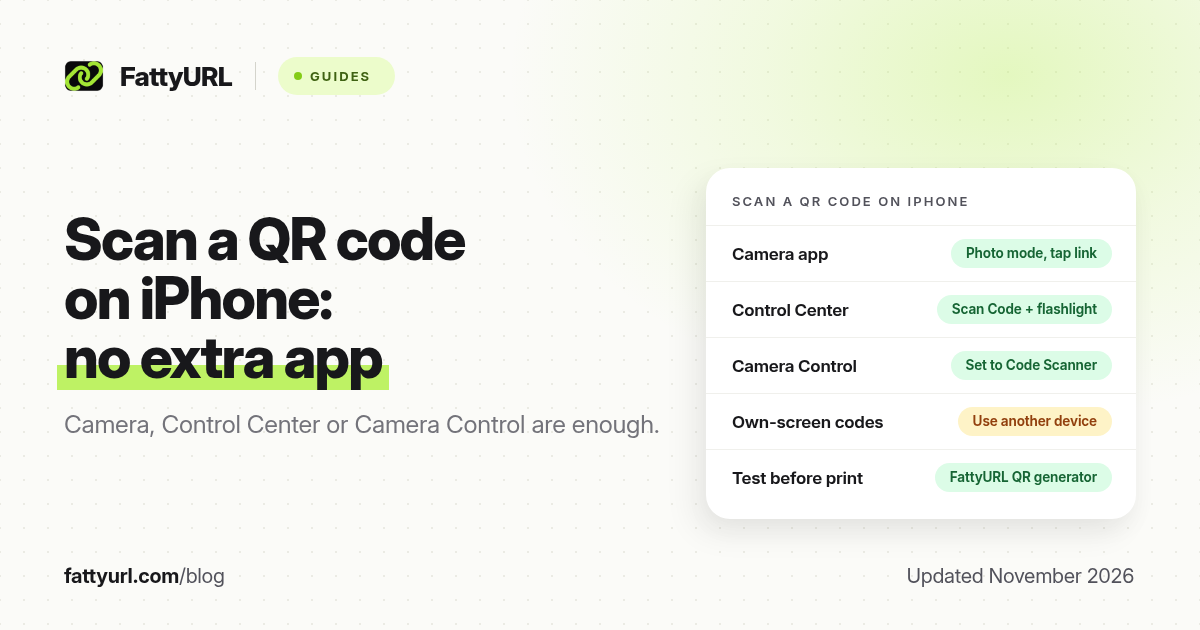
Short answer: You do not need a separate scanner app. Open the iPhone Camera app in Photo mode, point it at the QR code, and tap the link that appears at the bottom of the screen. You can also use Scan Code in Control Center, or set Camera Control to Code Scanner on supported models. Apple's steps below were checked on 19 November 2026.
This guide follows Apple's support pages, including "Scan a QR code with your iPhone or iPad," which Apple updated on 14 September 2026. If the code is in a screenshot already saved on your phone, use our separate screenshot scanning guide rather than the rear camera.
How do you scan a QR code with the iPhone Camera app?
Open Camera, stay in Photo mode, frame the whole QR code, then tap the notification that appears. That is Apple's default method, and it works for websites, App Store pages, tickets, coupons and similar payloads the system recognises.
- Open the Camera app from the Home Screen, the Lock Screen, Control Center, or Camera Control on supported models.
- Switch to Photo mode if you are in Video, Portrait or another mode.
- Hold the iPhone so the entire QR code is visible inside the frame. You do not need to press the shutter.
- When the iPhone recognises the code, a notification or link appears at the bottom of the screen. Tap it to open the content.
Scanning identifies the destination. It does not by itself complete a payment, a login or a download. If the link looks unexpected, close it and check the source of the code before you continue. Our short-link safety guide explains how to preview a hidden destination.
How do you scan a QR code from Control Center?
Control Center includes a Scan Code control that opens a dedicated scanner, with a flashlight button for dark menus or posters. If you do not see it, add it once, then use it whenever the Camera app is slow to recognise a code.
- Open Control Center. On recent iPhone models, swipe down from the top-right corner.
- Tap Scan Code. Point the iPhone at the QR code and tap the result.
- If Scan Code is missing, touch and hold the background of Control Center, tap Add a Control, then choose Scan Code from the gallery. Tap elsewhere to return to Control Center.
Apple's iPhone user guide also notes that you can tap the flashlight in this scanner to add light. That helps on a dim table tent or a glossy menu.
Can Camera Control open the code scanner?
Yes, on supported iPhone models that have Camera Control. It is a shortcut, not a requirement. The Camera app and Control Center methods still work if you never change this setting.
- Open Settings, tap Camera, then tap Camera Control.
- Choose Code Scanner. The other options are Camera, Magnifier, or None.
- Press Camera Control to open the scanner, point the iPhone at the code, and tap the result.
Apple documents this in "Use the Camera Control to open another app on iPhone." Availability depends on the model. If your iPhone has no Camera Control button, use Camera or Control Center instead.
How do you scan a QR code from a screenshot or a photo?
The rear camera cannot scan a code that is on the same iPhone's display. If the QR code is in a Messages thread, an email, a PDF or a screenshot, you need a different route than pointing the camera at your own screen.
Apple's camera instructions do not describe a single, universal one-tap action inside Photos for every saved QR image, so do not rely on that as the only method. Practical options are: open the code on another screen and scan it with the iPhone camera; print it; or follow our guide to scanning a QR code from a screenshot, which covers Live Text and related iOS tools.
What if the QR code will not scan?
Most failures are about lighting, distance, or the printed code, not a broken iPhone. Work through these checks before you install a third-party scanner app.
- Stay in Photo mode and keep all four corners of the code visible.
- Change the distance. Move closer for a small code; move slightly back if the code fills the whole frame and will not focus.
- Hold still and let the camera focus. On a glossy menu, tilt the phone to cut glare.
- Add light with the Control Center scanner's flashlight, or move to a brighter spot.
- Try Scan Code if the Camera app does not pick the symbol up.
- Check the code itself. A blurry print, low contrast, a missing quiet margin, or a damaged sticker will defeat any phone. See why a QR code stops working and print size guidance.
How do you make a QR code that iPhones can scan reliably?
If you are the person publishing the code, test it with an iPhone camera before you print a batch or post it on a story. FattyURL is a free URL shortener at fattyurl.com. A short destination URL makes a simpler pattern, which helps small print and phone screens.
Disclosure: FattyURL is our product. Numbered steps:
- Shorten the destination link with a free account if you may need to edit it later or see clicks. Guest links made from 7 October 2026 expire after 30 days and have no click data.
- Create the code in the free QR generator. Download a PNG or SVG, with no watermark and no sign-up.
- Open the file on a computer or another phone, then scan it with your iPhone Camera app. Confirm the page that opens is the one you intended.
A step-by-step for first-time creators is in How to make a QR code for a link.
Key takeaways
- The Camera app is enough for most QR codes. Use Photo mode, frame the whole symbol, and tap the link that appears.
- Scan Code in Control Center is the backup, with a flashlight for dark or glossy surfaces.
- Camera Control can open Code Scanner on supported models, via Settings > Camera > Camera Control.
- You cannot scan your own screen with the rear camera. Use another device, a print, or a screenshot workflow.
- Test any code you publish with an iPhone before you print it. A short URL helps the pattern stay scannable.
FAQ
Do I need an app to scan a QR code on iPhone?
No. The built-in Camera app and the Scan Code control in Control Center both read QR codes. You only need a third-party app for unusual code types your Camera app does not recognise.
Why does my iPhone camera not see the QR code?
Check that you are in Photo mode, that all four corners are in the frame, and that there is enough light and focus. Then try Scan Code in Control Center. If every phone fails, the printed code is likely too small, too low-contrast, or damaged.
Where is Scan Code in Control Center?
Open Control Center, touch and hold the background, tap Add a Control, and choose Scan Code. Apple's support article "Scan a QR code with your iPhone or iPad" describes this, and was updated on 14 September 2026.
Can I scan a QR code from a photo on my iPhone?
Not with the rear camera pointed at the same phone's display. Use our screenshot guide, open the image on another screen, or print it.
Does scanning a QR code automatically pay or sign me in?
No. The iPhone shows a link or action for you to tap. A payment, login or download only continues if you proceed on the page or app that opens.
Is it safe to scan a restaurant or poster QR code?
Treat an unexpected code like an unexpected link. Look at the URL preview if your phone shows one, and do not enter passwords or card details on a site you do not recognise. Preview hidden short links before you trust them.
Sources
- Apple Support, Scan a QR code with your iPhone or iPad, published 14 September 2026, checked 19 November 2026
- Apple iPhone User Guide, Scan a QR code with your iPhone camera
- Apple iPhone User Guide, Use the Camera Control to open another app
- FattyURL QR generator
Disclaimer: This article is for general information only and is not legal or security advice. It was researched and drafted with the help of AI, and its facts were checked against the sources linked above, mostly each provider's own pricing, help and policy pages. URL shorteners, QR code tools and social platforms change their plans, prices and rules often, so confirm the details on the provider's website before you choose a plan, move your links or print a QR code. FattyURL is our own product. Spotted something out of date, or a FattyURL link being misused? Tell us and we will act on it.