How to Scan a QR Code on Android (Camera, Lens, Circle to Search)
Most Android phones scan a QR code with the Camera app. Here are official Camera, Quick Settings, Lens and Circle to Search steps, and what to try if the code will not read.
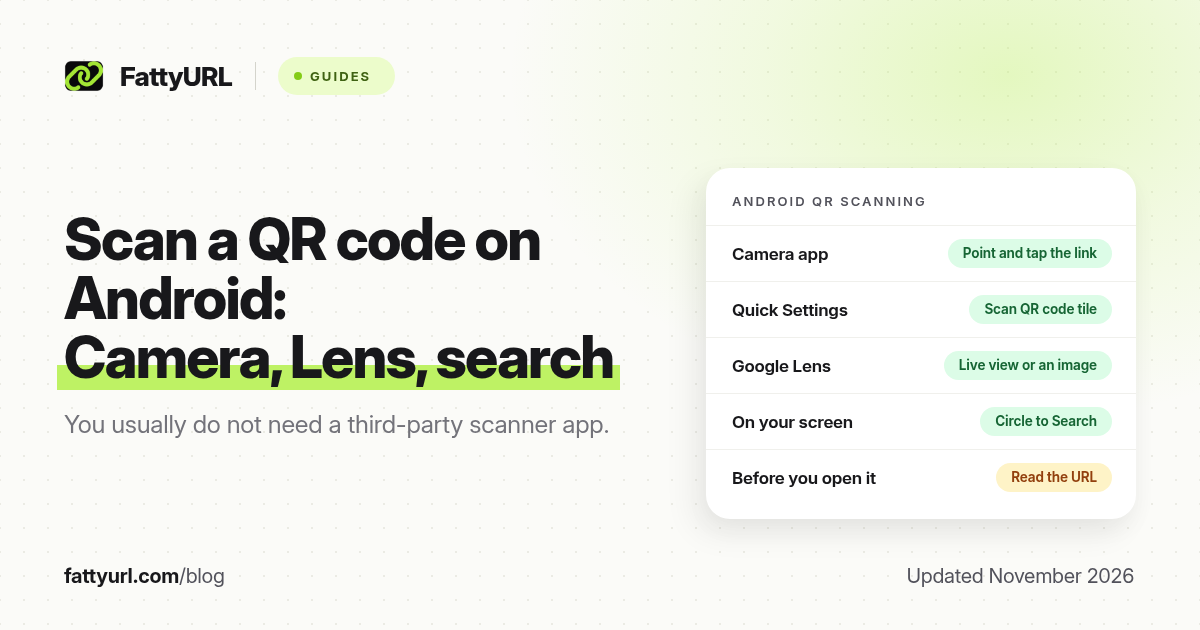
Short answer: On most Android phones, open the Camera app, point it at the QR code, and tap the link that appears. You can also use the Quick Settings "Scan QR code" tile, or Google Lens. If the code is already on your screen, Circle to Search can scan it on phones that include that feature. Read the URL before you open it.
You do not need a special QR app for most codes on Android. Google documents this for Pixel phones, and Android's own guide describes the same Camera, Quick Settings and Lens pattern that many other Android phones follow. This walkthrough uses those official steps, plus what to do when the code is already in a screenshot, email or PDF. For iPhone, use how to scan a QR code on iPhone. FattyURL is a free URL shortener at fattyurl.com, and it also has a free QR generator.
How do I scan a QR code with the Android Camera app?
Android's official magazine guide, updated 20 January 2025, puts the basic method in three steps:
- Open your Camera app.
- Point it at the code on a print ad, a screen, or another object. You do not need to take a photo.
- Pause until the app detects the code, then tap the notification or link that appears. It may be a website, a payment link, product information or something else.
On a Pixel, Google's help adds a switch to check if nothing happens:
- Open the Camera app, then go to Settings, More settings, Camera scan suggestions.
- Make sure "Camera scan suggestions" is turned on.
- Point the camera so the entire code shows on the screen, wait for a bubble or link, and tap it to open.
Other Android makers often build a similar scanner into the Camera app, but the menu names differ. If your Camera app never shows a bubble, try the Quick Settings tile or Google Lens instead of installing a random third-party scanner.
How do I scan a QR code from Quick Settings?
Both the Android guide and Pixel help describe a dedicated scanner in Quick Settings:
- Swipe down from the top of the screen. On some phones you swipe down twice to see the full tile grid.
- Tap "Scan QR code" or the QR scanner icon. If you do not see it, swipe sideways through the tiles, or tap the edit or pencil icon to add it.
- Point the scanner at the code.
This is useful when you do not want to leave the app you are in, or when your default Camera app does not offer scan suggestions.
How do I scan a QR code with Google Lens?
Google Lens can read QR codes and barcodes, including more than one code in the same view. Android's guide says you can point Lens at the code and it will recognise it and show the associated information. Ways to open Lens, as described in Google's Android documentation, include:
- A Lens icon or mode inside some Camera apps.
- The Lens icon in the Google app search bar.
- The Lens icon in Google Assistant on many phones.
Then point the camera at the code, or choose an existing image, and follow the result. If Lens cannot use the camera, check that the Google app has camera permission in Settings.
How do I scan a QR code that is already on my Android screen?
You cannot easily point your own camera at your own display. Android's official guide recommends Circle to Search for "on-content" codes in emails, PDFs, photos, apps or videos, on phones that include the feature:
- Press and hold the home button. If you use gesture navigation, long-press the navigation handle instead.
- When the Google search bar appears, circle the QR code with your finger.
- Circle to Search reads the code and shows the information or link.
Circle to Search is available on select Android devices. Android's guide says you can look for it in Settings by searching for "Circle to Search" and use the toggle if it appears. If your phone does not have it, open the screenshot or image in Google Lens, or use a second device. We also have a walkthrough for scanning a QR code from a screenshot.
Why is my Android phone not scanning the QR code?
Pixel help lists the usual physical problems: hold the phone steady, use good light, avoid glare and shadows, wipe a smudged lens, and move closer while keeping the whole square visible. If those fail:
- Turn on Camera scan suggestions on a Pixel, or look for a similar "QR" or "scanner" switch in your Camera settings.
- Try the Quick Settings scanner or Lens, in case the Camera app on your model does not detect codes automatically.
- Check that the code itself is sharp, high-contrast and not damaged. Our guide to why a QR code is not working covers print size, contrast and damaged codes.
- Update the Camera, Google and Play services apps from the Play Store, then try again.
Is it safe to open a QR code I just scanned?
The scanner's job is to read the text in the code, often a URL. It does not prove the destination is safe. Read the link on the preview chip before you tap it. If it is a short URL, expand it first; see URL expander. Skip codes stuck over an older code on a parking meter, menu or poster, and skip payment or login pages you did not ask for. Type a known address or use the official app instead.
If you are the one putting a QR code on a poster, use a short, editable link so you can fix the destination without reprinting. FattyURL's QR generator needs no sign-up, adds no watermark, and exports PNG or SVG.
Key takeaways
- The Camera app scans most QR codes on Android. You do not usually need a separate scanner app.
- Pixel phones have a "Camera scan suggestions" switch and a Quick Settings "Scan QR code" tile.
- Google Lens can scan codes in front of you or in an image.
- Circle to Search can read a code that is already on your screen, on phones that include it.
- Read the URL before you open it.
FAQ
Do I need to download a QR scanner on Android?
Usually no. Try Camera, Quick Settings and Lens first. A random scanner app from a search ad is more risk than help.
Does this work on Samsung, Motorola and other Android phones?
Often yes, with slightly different menu names. The Camera, Quick Settings and Lens methods in Android's own guide are the ones to try first. Pixel-only labels, such as "Camera scan suggestions," may sit under a different name, or may not exist, on another brand.
Can Android scan a Wi-Fi or payment QR code?
Many phones can offer to join a Wi-Fi network or open a payment link after a scan. Confirm the network name or payment destination before you accept. A Wi-Fi code can also be a way to send you to the wrong network.
What if Circle to Search is missing?
It is limited to select devices. Use Lens on the image, email the image to a second device, or follow the screenshot guide linked above.
Can I scan several QR codes at once?
Android's Lens overview says Lens can handle multiple codes at once. The default Camera bubble usually focuses on one code in the frame.
How do I scan a QR code on iPhone instead?
Use the Camera app or Control Centre scanner. The steps are in how to scan a QR code on iPhone.
How do I create a QR code people can scan on Android?
Generate a high-contrast code, test it with Camera and Lens, and point it at a short, editable URL. Start at fattyurl.com/qr.
Sources
- Android Magazine, "How do you scan QR codes on Android?", dated 20 January 2025: android.com/articles/how-do-you-scan-qr-codes-on-android, checked 19 November 2026.
- Pixel Phone Help, "Scan QR codes with your Pixel phone": support.google.com/pixelphone/answer/16561572, checked 19 November 2026.
- Google's Android documentation on opening and using Google Lens, checked 19 November 2026.
Disclaimer: This article is for general information only and is not legal or security advice. It was researched and drafted with the help of AI, and its facts were checked against the sources linked above, mostly each provider's own pricing, help and policy pages. URL shorteners, QR code tools and social platforms change their plans, prices and rules often, so confirm the details on the provider's website before you choose a plan, move your links or print a QR code. FattyURL is our own product. Spotted something out of date, or a FattyURL link being misused? Tell us and we will act on it.