How to Make a Wi-Fi QR Code (Text Format, Android and iPhone, 2026)
Make a Wi-Fi QR code by pasting WIFI:T:WPA;S:name;P:password;; into any QR maker. Android can also show one in Settings. Includes escaping rules and fixes.
A Wi-Fi QR code is just text in a fixed format. Anyone can paste that text into a QR maker and print the result, so guests join by scanning instead of typing.
The text looks like this: WIFI:T:WPA;S:MyNetwork;P:MyPassword;;. Replace the network name and password with your own.
Short answer: Write the text
WIFI:T:WPA;S:<network>;P:<password>;;with your real details, paste it into any QR code maker, and download the image. On Android you can skip the maker: Settings shows a QR code for the network you are on. Apple's Wi-Fi sharing article for iPhone does not mention a QR code.
What text goes inside a Wi-Fi QR code?
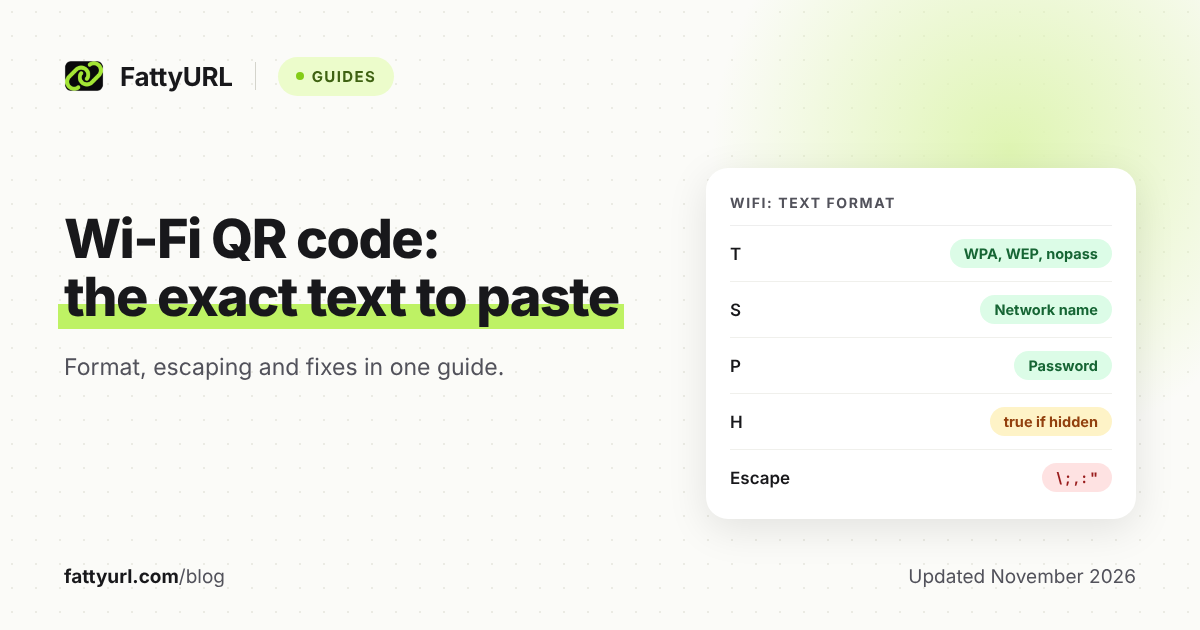
The code holds one line that starts with WIFI: followed by fields. Each field is a letter, a colon, a value and a semicolon. The line ends with two semicolons. This is the format described in the ZXing project's documentation.
For a network with a password, the line looks like WIFI:T:WPA;S:HomeNet;P:correct-horse-battery;;. ZXing says field order does not matter. The network name (S) is required.
| Field | Meaning | Values |
|---|---|---|
| T | Security type | WEP, WPA, WPA2-EAP, or nopass (can be left out for an open network) |
| S | Network name (SSID) | Required |
| P | Password | Ignored when T is nopass |
| H | Hidden network | true |
Checked 7 November 2026 against the ZXing wiki. ZXing gives no WPA3 value and no WPA2 value other than WPA2-EAP. Its own example uses T:WPA, so test the printed code on your network. A hidden network adds H:true;, for example WIFI:T:WPA;S:HomeNet;P:secret;H:true;;.
How do I write names and passwords with special characters?
Put a backslash before any of these five characters when they appear in the network name or password: backslash, semicolon, comma, double quote and colon. Without the backslash, a scanner can misread the name or password, so the phone may not join.
| Character | Write it as | Example value |
|---|---|---|
| ; | \; | P:ab\;cd for ab;cd |
| , | \, | P:ab\,cd for ab,cd |
| : | \: | P:ab\:cd for ab:cd |
| " | \" | P:ab\"cd for ab"cd |
| \ | \\ | P:ab\\cd for ab\cd |
ZXing also says to wrap a name or password in double quotes when it is plain ASCII that could be read as hex, such as "ABCD". Its own example for a name that contains quotes is WIFI:S:\"foo\;bar\\baz\";;.
How do I share Wi-Fi with a QR code on Android?
Android can show a QR code for the network your phone is already connected to. Google's help pages say you open Settings, go to Network & internet, then Internet, pick the network and choose Share. The phone then displays the code.
- Connect your phone to the Wi-Fi network you want to share.
- Open Settings, then Network & internet, then Internet.
- Tap the settings icon next to the network, then Share.
- Verify your identity if the phone asks.
- Let the other person scan the code with their own device.
Google's Pixel help page also lists a second route: open Quick Settings, tap Internet, then tap Share Wi-Fi. It says you may need to verify your identity. Android Help says some of its steps work only on Android 12 and up, so follow your phone's own Settings if menus differ.
Can I share Wi-Fi with a QR code on iPhone?
Apple's Support page on sharing a Wi-Fi password does not mention a QR code option. The method it documents is device to device: the other person taps the network, and your unlocked iPhone offers a Share Password button.
That method needs both people signed in with an Apple Account, each saved in the other's Contacts, with Wi-Fi and Bluetooth on. It does not work for a printed sign. For a sign, make the QR code from the text format above.
Apple's iPhone User Guide has a separate page on finding and sharing a Wi-Fi password in the Passwords app. Check it for the options on your iOS version.
How do I make a printable Wi-Fi QR code?
Write your WIFI: line with the exact network name and password, then paste it into a QR code maker as plain text. Download the image and print it. Any maker that accepts free text will work.
- Type the line, using the escaping table above for special characters.
- Open a QR maker that accepts any text. FattyURL's QR maker does, with no account needed, up to 1,000 characters.
- Paste the line and generate the code.
- Download it as PNG or SVG. Colors are your choice and there is no watermark.
- Print it, then scan the printed copy with an iPhone and an Android phone before you put it up.
FattyURL is not a dedicated Wi-Fi tool. Its QR maker encodes exactly the text you give, so you type the line yourself. If you want other options, see the best free QR code generators. For linking to a web page instead, read how to make a QR code for a link.
Is a Wi-Fi QR code safe to put on the wall?
It is only as safe as the password inside it. The code stores your password as plain text, so anyone who can scan it can also read it. Treat a posted code like a posted password.
- Put guests on a separate guest network if your router offers one, so the code never opens your main network.
- Place the sign where only the people you want can see it, such as inside a rental or behind a counter.
- Never reuse a password from email, banking or other accounts.
What happens when I change the Wi-Fi password?
You must print a new code. A Wi-Fi QR code is static text, so it cannot be edited after printing, and old copies keep the old password until you remove them.
It also cannot be tracked. Nothing records scans, because the phone reads the text and joins directly. A short link does not fit here: it would add a web page between the guest and the network, and the password would need to sit on a page. See static vs dynamic QR codes for the difference, and how scan tracking works for links.
Why does my Wi-Fi QR code scan but not connect?
If a code scans but will not join, the image is fine: the fault is in its text or the network. Check the typed line first, then the router. If the code will not scan at all, use why a QR code stopped working.
| Symptom | Likely cause | Fix |
|---|---|---|
| Wrong password error | Typo, or old password | Retype exactly, regenerate, reprint |
| Name or password cut off | Unescaped ; , : " or \ | Add a backslash before each |
| Cannot find network | Hidden network without H:true | Add H:true; |
| Join fails on open network | T set to WPA with no password | Use T:nopass |
| Name read as hex | Hex-looking name | Wrap it in double quotes |
| Works for some phones only | Different scanner apps | Test on both iPhone and Android |
Rows two to five follow the ZXing format rules. The last row is a testing tip: the Apple and Google pages used here do not describe how each phone's scanner handles Wi-Fi codes, so test your printed copy.
FAQ
Is there a built-in Wi-Fi QR code on iPhone?
Apple's Support articles on sharing and on finding saved Wi-Fi passwords do not mention one. Apple's iPhone User Guide has a separate Passwords app page on sharing Wi-Fi, so check it for your iOS version. For a printed sign, use the text format and a QR maker.
Do Wi-Fi QR codes expire?
The text in a static code does not carry an expiry date. It stops working when you change the network name, password or security type, because the code still holds the old details.
Can I make the code for a hidden network?
Yes. Add H:true; to the line. ZXing lists this as the field for hidden networks.
Can I make a Wi-Fi QR code without a password?
Yes, for an open network. Use WIFI:T:nopass;S:NetworkName;;. ZXing says the password is ignored when T is nopass. Open networks carry their own risks, so a guest network with a password is usually better.
Can I track who scans my Wi-Fi code?
No. The code holds the network details directly, so there is nothing to count. Only a QR code made from a short link counts scans, as clicks on that link.
Sources
- ZXing project wiki: Barcode Contents (WIFI: format and escaping), read 7 November 2026
- Android Help: Connect to Wi-Fi networks on your Android device, read 7 November 2026
- Pixel Phone Help: Connect to Wi-Fi networks on your Pixel phone, read 7 November 2026
- Apple Support: How to share your Wi-Fi password from your iPhone or iPad, read 7 November 2026
- Apple Support: Find your saved Wi-Fi passwords on iPhone or iPad, read 7 November 2026
- Apple iPhone User Guide: Find and share your Wi-Fi password on iPhone, read 7 November 2026
Disclaimer: This article is for general information only and is not legal or security advice. It was researched and drafted with the help of AI, and its facts were checked against the sources linked above, mostly each provider's own pricing, help and policy pages. URL shorteners, QR code tools and social platforms change their plans, prices and rules often, so confirm the details on the provider's website before you choose a plan, move your links or print a QR code. FattyURL is our own product. Spotted something out of date, or a FattyURL link being misused? Tell us and we will act on it.