Adobe Express QR Code Generator: Limits vs a Short-Link QR
Adobe Express can generate a free, static QR code for a URL and drop it into a design. Here are the official steps, what the codes cannot do, and when to use a dedicated generator.
Short answer: Adobe Express can generate a free, static QR code for a URL. Open the plus icon, choose Quick actions, then Generate QR code, paste the link, pick a format, and download a PNG, JPEG or PDF. Codes do not expire, but they cannot be retargeted later. FattyURL is a free URL shortener at fattyurl.com, which is the better starting point if you need an editable link or a SVG file.
Adobe Express is a good choice when the code has to live inside an Express flyer, poster or social template. It is a weaker choice as a general QR platform, because Adobe documents these codes as static and URL-only. The steps and limits below come from Adobe's help article "Generate QR codes," last updated 24 March 2026, and from Adobe Express's QR code generator page, both checked on 19 November 2026.
How do you create a QR code in Adobe Express?
Adobe's official help describes a Quick action that turns a URL into a downloadable code, which you can then open in the editor if you want to keep designing.
- Open Adobe Express in a browser. Adobe's marketing page says you can start in the browser without installing a separate app.
- On the homepage, select the plus icon in the left panel.
- Select Quick actions, then Generate QR code.
- Enter or paste the destination URL.
- Choose a file format from the dropdown, then customise colour and style.
- Scan the preview with your phone to test it. Then download the file, or select Open in editor to place the code in a design.
Adobe's feature page also describes a shorter path: open the QR code generator, enter a URL, and download. You can change style and colour to match a brand, and drop the finished image into an Express template. Downloads are listed as PNG, JPEG or PDF. SVG is not mentioned on that page.
Are Adobe Express QR codes static, and do they expire?
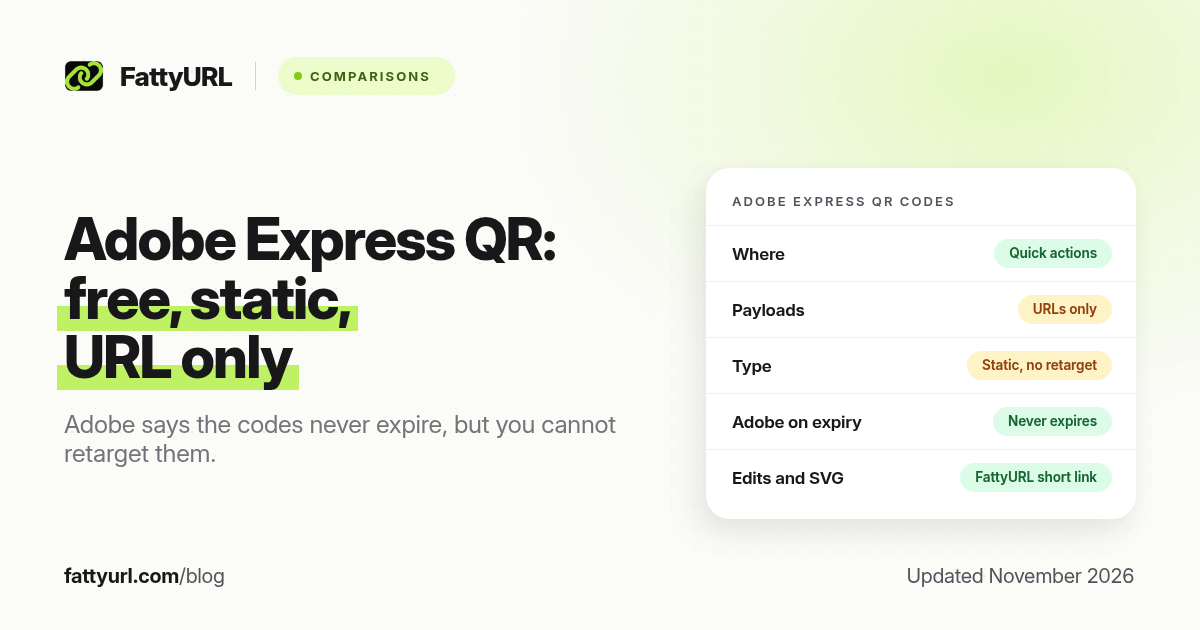
Adobe Express generates static QR codes. Adobe's own FAQ says a static code has a fixed destination that cannot be changed after creation, and that this makes the tool a fit for permanent links such as a website, a profile or a business card. If that page moves, you must generate a new code and replace it on every print and file.
Adobe also says QR codes created with Adobe Express never expire, and stay active for as long as you need them. That is true of the symbol itself. The scan still fails if the destination URL is gone, requires a login the scanner does not have, or is printed too small or in low contrast. For the wider static-versus-dynamic trade-off, see Do QR codes expire?
What can you, and can you not, put in an Adobe Express QR code?
Adobe's FAQ is explicit: Adobe Express currently generates QR codes for URLs only. It tells you to use a dedicated tool for Wi-Fi or contact-card codes, or to link the QR code to a contact page or a digital business card you already host. You can add a logo in the drag-and-drop editor, and you can customise colours and frames, according to the same page.
For print size, Adobe recommends at least 2 × 2 cm for reliable close-range scanning, and a larger size for posters and signage. That matches the usual print rule we use in QR code size for print. If you need a Wi-Fi or vCard payload, use a generator that supports those types, such as our Wi-Fi and vCard guides, then place the image into Express if you still want Express layouts.
Adobe Express vs a short-link QR generator (November 2026)
Disclosure: FattyURL is our product. Use this table to decide whether Express is enough, or whether the code should point at a short link you control.
| Need | Adobe Express, as of November 2026 | FattyURL |
|---|---|---|
| Sign-up to make a basic URL code | The Quick action runs in the Express app; you use an Adobe account to work in Express | No sign-up for a basic URL QR code |
| Payloads | URLs only | URL codes in the QR generator; shorten any allowed link first |
| Static or dynamic | Static; destination cannot be changed after creation | Point the code at a short link in a free account to edit the destination later |
| Expiry of the symbol | Adobe says the codes never expire | The QR image itself does not expire or carry a watermark |
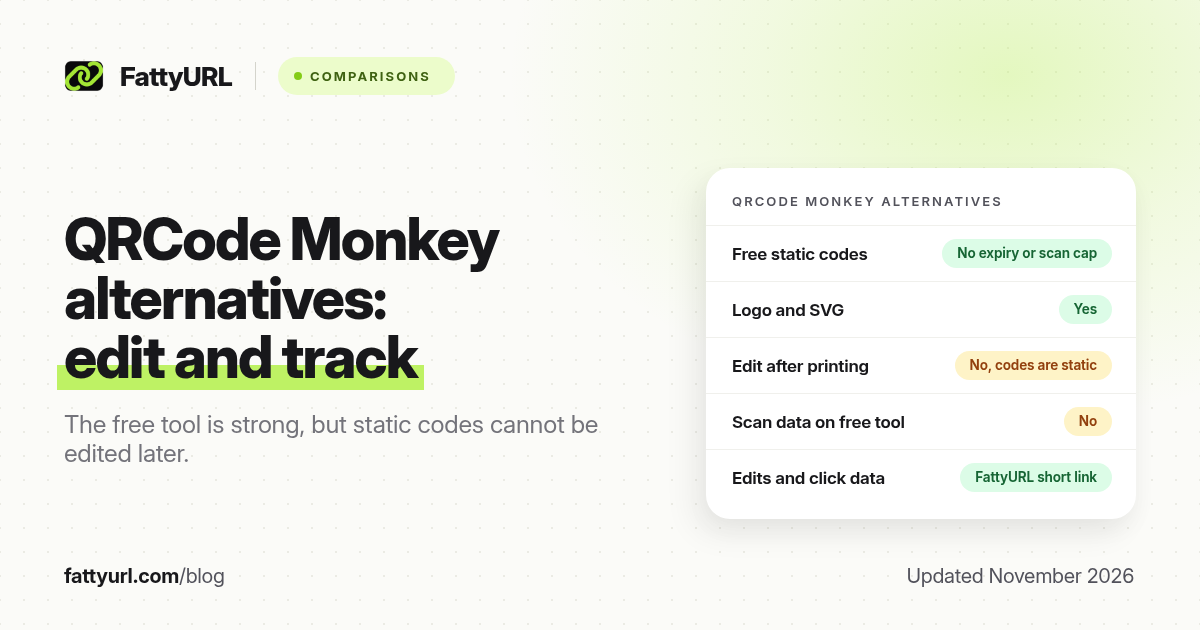
| Download formats | PNG, JPEG or PDF | PNG and SVG |
| Logo and brand colours | Yes, in the Express editor | Foreground and background colours; add a logo in your design tool if you need one |
| Click data | Not provided for the static code | Click analytics on short links in a free account |
- If you may need to change the destination or see clicks, create a short link in a free FattyURL account. Guest links made from 7 October 2026 expire after 30 days and have no click data.
- Either paste that short URL into Adobe Express, or generate a PNG or SVG at fattyurl.com/qr and place the image in your Express design.
- Scan the export before you print. A first-time walkthrough is in how to make a QR code for a link.
Key takeaways
- Adobe Express can generate a free URL QR code from Quick actions, then open it in the editor or download it.
- The codes are static and URL-only. Adobe says they never expire, but you cannot retarget them later.
- Downloads are PNG, JPEG or PDF. SVG is not listed on Adobe's QR generator page.
- You can add a logo and change colours in the Express editor, which is the main design advantage.
- Point the code at a FattyURL short link if you need destination edits, click data or a SVG original.
FAQ
Is the Adobe Express QR code generator free?
Adobe markets it as a free QR code generator for a URL, with colour, style and logo tools in Express. Express itself has free and paid plans; check which export or template features your account includes.
Do Adobe Express QR codes expire?
Adobe says they never expire. Because they are static, they still stop working if the destination URL disappears or the print cannot be scanned.
Can I change an Adobe Express QR code after I print it?
No. Adobe's FAQ says the destination cannot be changed after creation. Generate a new code, or point a static code at a short link you can edit.
Can Adobe Express make a Wi-Fi or vCard QR code?
Not currently, according to Adobe's FAQ. Use a dedicated generator, or link the code to a web page that holds the contact or Wi-Fi instructions.
What file types can I download?
Adobe's QR generator page lists PNG, JPEG and PDF. If you need a vector file that scales cleanly, generate an SVG elsewhere and import it, or export a large PNG.
What size should I print an Adobe Express QR code?
Adobe recommends at least 2 × 2 cm for close-range scanning, and a larger size for posters and signs, with enough contrast and a quiet margin.
Sources
- Adobe Help, Generate QR codes, last updated 24 March 2026, checked 19 November 2026
- Adobe Express, Free QR code generator, checked 19 November 2026
- FattyURL QR generator
- FattyURL pricing, last updated 5 October 2026
Disclaimer: This article is for general information only and is not legal or security advice. It was researched and drafted with the help of AI, and its facts were checked against the sources linked above, mostly each provider's own pricing, help and policy pages. URL shorteners, QR code tools and social platforms change their plans, prices and rules often, so confirm the details on the provider's website before you choose a plan, move your links or print a QR code. FattyURL is our own product. Spotted something out of date, or a FattyURL link being misused? Tell us and we will act on it.