QR Code and Barcode Scanner Apps: Do You Need One in 2026?
Most phones scan QR codes without an app. How to use the iPhone Camera and Code Scanner, Android's camera and Google Lens for barcodes, when a third-party QR and barcode app is worth it (inventory, check-in, history), and how to choose a safe one.
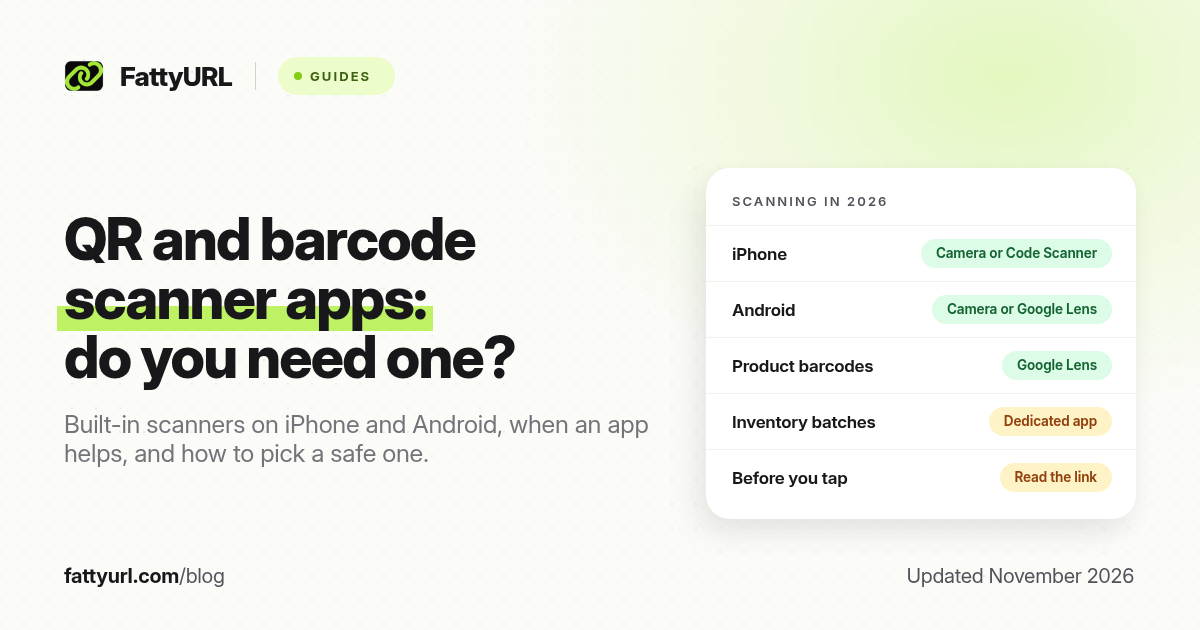
Most people do not need a QR code scanner app in 2026. The camera on every recent iPhone and most Android phones reads QR codes on its own, and Google Lens reads product barcodes too. A separate app is worth it only for specific jobs, such as scanning hundreds of barcodes for inventory, and the wrong app can do more harm than good.
Short answer: On iPhone, open the Camera app or the Code Scanner in Control Center and point it at the code. On Android, use the Camera app or Google Lens, which reads both QR codes and product barcodes. Install a third-party QR and barcode app only if you need batch scanning, scan history or inventory features, and choose one from a well-known publisher that asks for few permissions.
Written 29 November 2026 from Apple Support, Google's Android and Pixel help pages, and the Federal Trade Commission's QR code warning. Disclosure: FattyURL is our own product. FattyURL is a free URL shortener at fattyurl.com.
Do you need a QR code scanner app?
| What you want to do | Best tool | Extra app needed? |
|---|---|---|
| Open a QR code on a menu, poster or package | Phone's Camera app | No |
| Scan quickly without opening the camera | iPhone Code Scanner in Control Center; Google Lens on Android | No |
| Look up a product barcode while shopping | Google Lens | No on most Android phones; the Google app on iPhone |
| Read a QR code in a screenshot or photo | Google Lens or your phone's photo tools | No |
| Scan hundreds of barcodes into a spreadsheet | A dedicated inventory or barcode app | Yes |
| Keep a history of every code you scanned | A reputable scanner app with history | Yes |
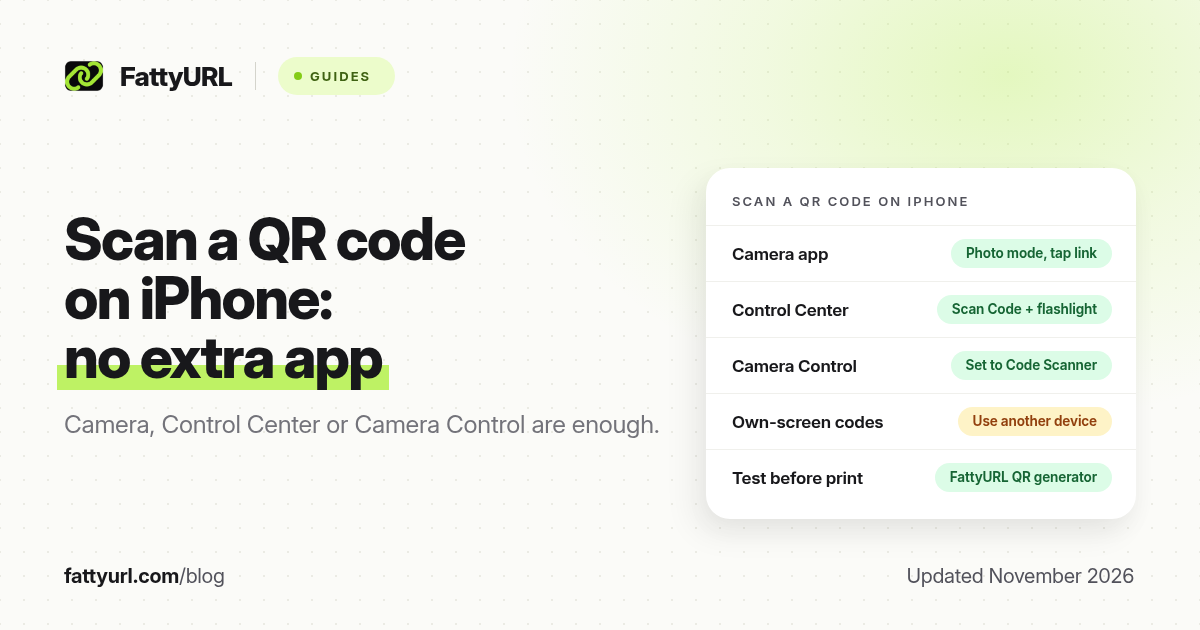
How to scan a QR code on iPhone without an app
Apple Support describes two built-in scanners: the Camera app and Code Scanner.
- Camera: open Camera from the Home Screen, Lock Screen or Control Center, keep it in Photo mode, and frame the code. Tap the link that appears at the bottom of the screen.
- Code Scanner: open Control Center and tap the Scan Code button. If it is missing, touch and hold the Control Center background, tap Add a Control, then choose Scan Code.
- Low light: tap the flashlight button while scanning.
Code Scanner is the closest thing to a built-in "scanner app," and it opens without switching camera modes, which helps when you scan many codes at a trade show or a holiday market.
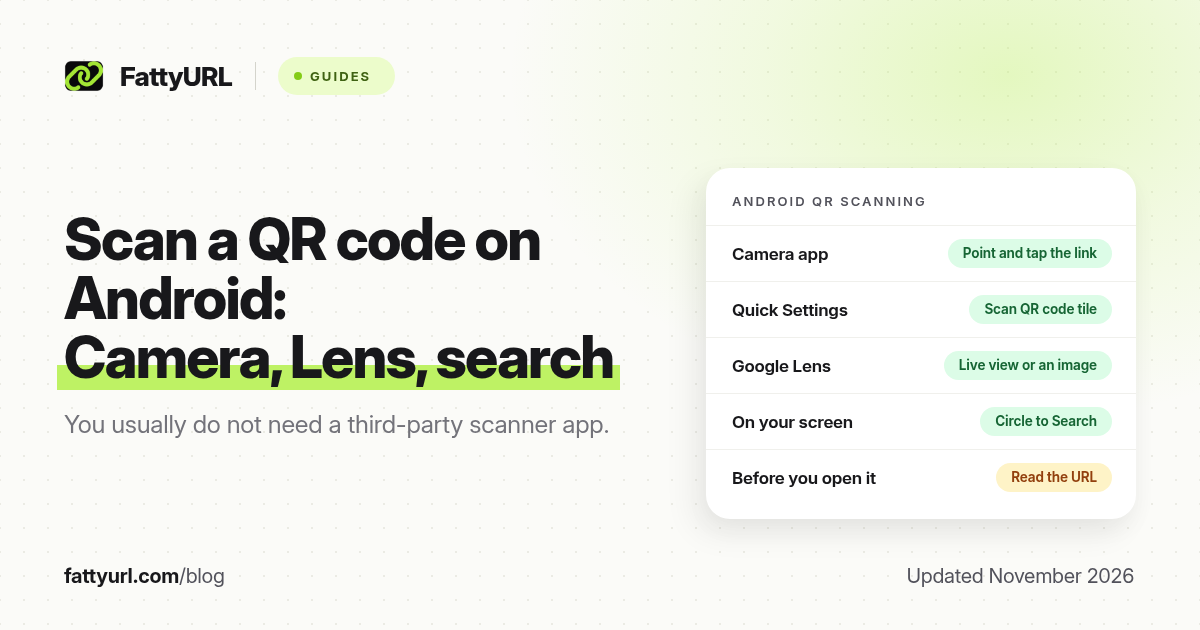
How to scan QR codes and barcodes on Android without an app
- Camera app: on most recent Android phones, point the camera at the code and tap the link that appears. On Pixel phones, Google's Pixel Camera help says to turn on Camera scan suggestions under Settings, then More settings, if nothing appears.
- Google Lens: Google's Android site says Lens can scan QR codes and barcodes. On some phones Lens is built into the camera; on others, open it from the Google app.
- Circle to Search: on supported phones, Google describes it as another way to use Lens on whatever is on your screen.
Steps differ by manufacturer, so if your Samsung, Motorola or Pixel phone looks different, look for a Lens icon or a scan mode in the camera.
Scanning a QR code from a screenshot or photo
A code someone texted you, or one inside an email, cannot be scanned with the same phone's camera. You do not need an app for that either: Google Lens can read a code in a saved photo, and iPhones have their own route. Our step-by-step guide to scanning a QR code from a screenshot covers iPhone, Android and computers.
When a third-party QR or barcode app is worth it
Dedicated apps earn their place for work tasks:
- Inventory and receiving: scanning many product barcodes in a row and exporting them to a spreadsheet.
- Event check-in: ticketing platforms usually provide their own scanner app tied to the guest list.
- Scan history: some apps keep a log of every code, which helps if you research competitors' packaging or signs.
- Older phones: very old devices may not read codes in the camera at all.
For everyday use, built-in scanners are safer because they come from the phone maker and update with the system.
How to choose a safe QR code scanner app
In December 2023 the Federal Trade Commission warned that scammers hide harmful links in QR codes, for example in fake delivery or account alerts, to push people toward spoofed sites. A scanner app cannot make a bad code safe, and a poor one adds its own risks. Before installing one:
- Check the publisher. Prefer well-known developers with a long update history and a clear privacy policy.
- Check permissions. A scanner needs the camera. Be wary of apps that also want contacts, location or the ability to draw over other apps.
- Check that it previews links. A good app shows the full web address and lets you decide whether to open it.
- Avoid apps full of ads that push you to install other apps or open pages automatically.
- Delete apps you no longer use.
Before you tap: read the link
Whatever scanner you use, the preview is your safety check. Read the domain in the preview. If it is a short link or an unfamiliar domain on a parking meter, a sticker or an unexpected text, do not enter payment or login details on the page it opens. Look for a sticker placed over the original code on public signs. When in doubt, type the business's web address yourself.
If you are the one printing the code, make that check easy for customers. Use a short link with a readable slug, such as one made in a free FattyURL account, so the preview shows something that looks like your business. A free account adds custom slugs, click analytics and editing, and its links never expire; free links may show ads, while paid-plan links never do. Our guide to how to make a QR code for a link walks through it, and our test of free QR code generators shows which ones make codes that never expire.
What if the scan works but the page does not?
If your phone shows a preview but the page says the code was disabled, deactivated or expired, the scanner is fine and the problem is the link inside the code. A new app will not fix it. See why a QR code is not working for the 10 common causes and who can fix each.
Key takeaways
- iPhone and most Android cameras scan QR codes without any app.
- iPhone's Code Scanner lives in Control Center; Android users can use Google Lens, which also reads barcodes.
- Third-party scanner apps make sense for inventory, check-in and scan history.
- Pick apps from known publishers that ask only for the camera and preview links before opening them.
- A "campaign disabled" page is a link problem, not a scanner problem.
FAQ
Do I need an app to scan a QR code?
Usually not. The iPhone Camera app and Code Scanner read QR codes, and most Android phones read them in the camera or Google Lens.
What is the best free QR and barcode app?
For most people, the built-in options: Code Scanner on iPhone and Google Lens on Android, which reads both QR codes and product barcodes. Add a third-party app only for inventory or scan history.
Where is the QR code scanner on my iPhone?
In Control Center, as the Scan Code button. If it is not there, touch and hold the Control Center background, tap Add a Control, and choose Scan Code.
Where is the scanner on my Android phone?
Point the Camera app at the code, or open Google Lens from the camera or the Google app. On Pixel phones, turn on Camera scan suggestions if nothing appears.
Are QR code scanner apps safe?
Some are, but they add risk without adding protection. Prefer built-in scanners, and if you install one, check the publisher, the permissions and whether it previews links before opening them.
Can a scanner app fix a QR code that says it has been deactivated?
No. That message comes from the company behind the code, not your phone. Only the code's owner can reactivate it or print a new one.
Sources
- Apple Support: Scan a QR code with your iPhone or iPad, published 14 September 2026, read 29 November 2026
- Apple iPhone User Guide: scan a QR code with the camera, read 29 November 2026
- Pixel Camera Help: scan QR codes, read 29 November 2026
- Android: How to use Circle to Search and Google Lens, read 29 November 2026
- CNBC: QR codes may be a gateway to identity theft, FTC warns (report on the FTC's December 2023 consumer alert), read 29 November 2026
Disclaimer: This article is for general information only and is not legal or security advice. It was researched and drafted with the help of AI, and its facts were checked against the sources linked above, mostly each provider's own pricing, help and policy pages. URL shorteners, QR code tools and social platforms change their plans, prices and rules often, so confirm the details on the provider's website before you choose a plan, move your links or print a QR code. FattyURL is our own product. Spotted something out of date, or a FattyURL link being misused? Tell us and we will act on it.