Google Review QR Code: How to Get Your Review Link and Print It (2026)
Find your Google review link in Business Profile on a computer: Read Reviews, then Get more reviews. Copy the link or save Google's QR code, or make the QR from a short link to count scans. Never pay or filter for reviews.
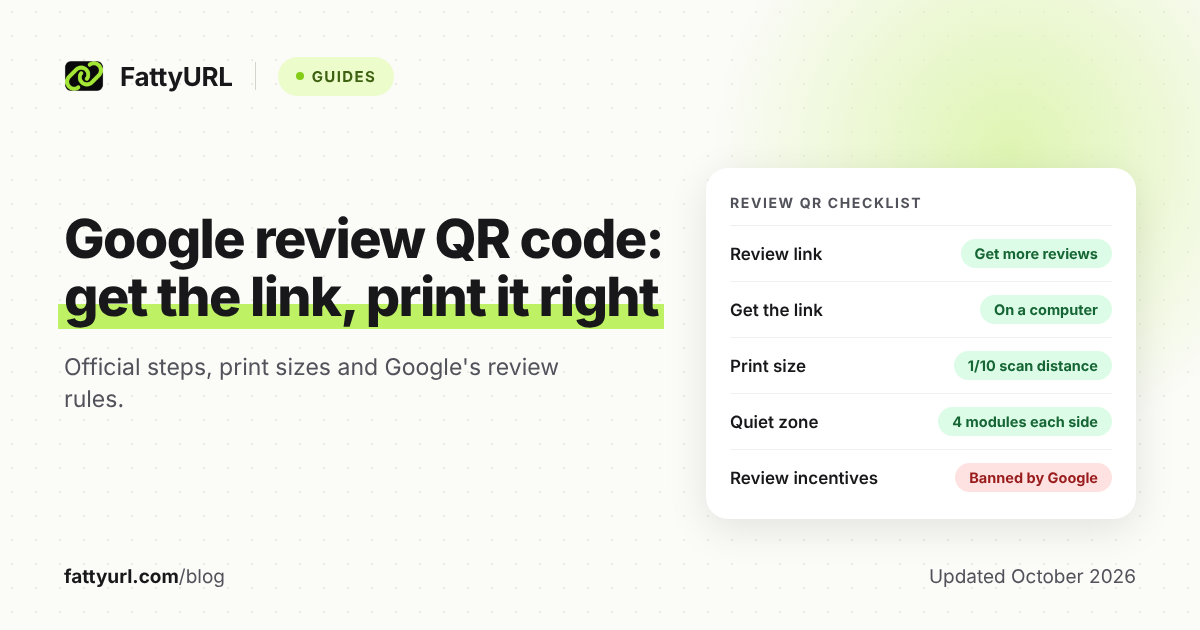
Your Google review link sits inside your own Business Profile. On a computer, open your profile, select Read Reviews, then Get more reviews. Google shows a link to copy and a QR code to save, and both open your review form.
That covers most shops. Want to count scans or change the destination after printing? Build the QR code from a short link instead.
Short answer: Open your Google Business Profile on a computer and select Read Reviews, then Get more reviews. Copy the link there, or save Google's free QR code. To count scans per placement, make the QR code from a short link instead, and never offer incentives or ask only happy customers.
How do I get my Google review link?
Get it from your Business Profile, on a computer, signed in to the Google account that manages the profile. Google only generates review QR codes in a computer browser, not on phones. The Get more reviews box gives you the official link and QR code, so you do not need a generator or any paid tool.
These are the steps in Google's Business Profile help, checked 28 October 2026:
- On a computer, go to your Business Profile. Google's help links to business.google.com for this step.
- Select Read Reviews.
- Select Get more reviews.
- To take the link, select Copy. To keep the QR code, right-click it and choose Save image as.
Google's help also mentions sending the request by email, WhatsApp or Facebook. Button names shift as Google updates the panel, so treat these labels as current on 28 October 2026.
Before you print, check that your profile is verified. Google says customers can only find your profile after you complete verification.
Do I need a Google review link generator?
No, not if you can sign in to the profile: Google hands you the official link under Get more reviews. Generators such as ProveSource's build a link from your Place ID, Google's code for a location. Google's Place ID documentation does not describe any review link format, so a generated link is a gamble on print.
Others, like meetergo's, accept a Place ID (from Google's Place ID Finder), a Maps link or the Get more reviews link. Google's developer docs also warn that "Place IDs may change over time" and suggest refreshing stored IDs older than 12 months.
A generator still helps if you set up many locations or are waiting for manager access to a client's profile. If you use one, put its link behind a short link you can edit, so a change never forces a reprint.
Should I use Google's QR code or make my own?
Use Google's own QR code if you want one free code and no numbers, with no third party in the way. Make the QR code from a short link if you want to count scans, compare placements, or change where it points after printing. The cost is one extra redirect.
| What you need | Google's QR code | QR code from a short link |
|---|---|---|
| Price | Free | Free with a FattyURL account; other shorteners vary |
| Scan counts | Not mentioned in Google's help | Each scan counted as a click |
| Compare placements | One code everywhere | One short link per placement |
| Change destination after printing | No, you reprint | Yes, edit the short link |
| Third party in between | None | A shortener redirect; free FattyURL links may show ads, links on a paid plan never do |
Checked 28 October 2026 against Google's Business Profile help and FattyURL's own plans.
Counting works because the code holds the short link, so each scan is logged as a click. You see clicks over time, country, city and device, but scans are not reviews, so compare them with new reviews in your profile. For more on reading the numbers, see how to track link clicks.
How do I turn my review link into a short link and QR code?
Shorten the review link while signed in to a free account, then make the QR code from the short link, not from Google's link. Links made with a FattyURL account never expire, so the printed code keeps working through slow months. Test one printed copy before you order a batch.
- Copy your review link from Get more reviews, as above.
- Sign in to a free account at FattyURL, or the shortener you prefer, and shorten the link.
- Choose a readable ending, such as your business name. FattyURL allows 6 to 100 characters, and the ending doubles as text to print under the code. See how to pick a custom short link.
- Make the QR code from the short link. Pick SVG for print, since vector files stay sharp at any size, or PNG for screens.
- Print one copy and scan it from where customers will stand. Confirm it opens your review form.
- To compare spots, repeat with a separate short link for the counter, receipts and table tents.
Do not skip the account for anything printed, because links made without one expire after 30 days without a click. Free links may show ads, while links on a paid plan never do; how FattyURL stays free explains the trade. For colors, logos and file types in general, see how to make a QR code.
Where should I put a Google review QR code?
Put it where customers pause right after a good experience: the counter, the receipt, table tents, packaging and your invoice or thank-you email. Google's own help suggests receipts, thank-you emails, the end of a chat and a printed QR code in your store. In emails, lead with a tappable link.
| Placement | Print it at least | Tip |
|---|---|---|
| Counter or checkout sign | 2 in (5 cm), if scanned from about 20 in (50 cm) | Place it where people wait, with "Review us on Google" outside the margin |
| Table tent | 1.6 in (4 cm), from about 16 in (40 cm) | Keep it flat and upright, since bent codes are harder to read |
| Receipt | 0.8 in (2 cm), from about 8 in (20 cm) | Test a real printed receipt, not the screen preview |
| Packaging or thank-you card | 1 in (2.5 cm), from about 10 in (25 cm) | Print the short link as text under the code |
| Invoice or thank-you email | A link or button first | A phone camera cannot scan its own screen; add the QR code for desktop readers |
Sizes use the 10:1 rule below, checked 28 October 2026. The distances are examples, so measure your own.
A sign invites, but staff should not push. Google's policy says merchants should not require or pressure customers to leave reviews while on the premises.
How big should I print a Google review QR code?
Make the code at least one tenth as wide as the distance it will be scanned from. QR Planet's help center uses this 10:1 rule and recommends about 0.8 in (2 cm) square for codes scanned from 8 in (20 cm). Leave a blank margin four squares wide, and print a dark code on a light background.
- Size: Bigger is safer. DENSO WAVE, the company that invented the QR code, advises printing it as large as the space allows.
- Quiet zone: DENSO WAVE requires a blank margin four modules (squares) wide on every side. GS1, the barcode standards body, adds that any "scan me" text belongs outside that margin.
- Contrast: DENSO WAVE's basic advice is "black on a white background." It warns that some color pairs cannot be read, so test any colors before printing.
- Shorter link, bigger squares: Less data means fewer squares, so each one prints larger at the same size. QR Planet notes that shortened URLs can be printed smaller.
- File type: Use a vector file such as SVG, EPS or PDF for print, so the code stays sharp when enlarged.
- Test: Scan the printed proof with an iPhone and an Android phone from the real distance. If it fails, work through why a QR code is not working.
What does Google allow when you ask for reviews?
Google lets you ask any customer for an honest review, by QR code, link, email or in person. It bans incentives of any kind, asking only happy customers, staff review quotas, requests for specific content, and pressure to review on the premises. Breaking these rules can get reviews removed and new reviews blocked.
| Practice | Google's policy | Notes |
|---|---|---|
| A QR sign, receipt link or email for every customer | Allowed | Google suggests these placements itself |
| A discount, freebie or payment for a review | Banned, even for honest reviews | The US FTC rule only bans incentives tied to sentiment; Google's ban is wider |
| A "rate us first" page that sends only happy customers to Google | Banned | The FTC says this "could violate the FTC Act" |
| A perk for changing or deleting a negative review | Banned | Reply publicly and fix the problem instead |
| Staff review quotas, or asking for reviews that name staff | Banned | Asking for specific content is also out |
| Owners or employees reviewing the business | Banned as a conflict of interest | The FTC says not to ask staff for reviews without a clear disclosure |
| Requiring or pressuring a review before the customer leaves | Banned on the premises | A sign the customer can ignore is fine |
Policies checked 28 October 2026.
Google's wording on gating is direct: merchants may not "selectively solicit positive reviews from customers." So point your QR code straight at the review form, not at a survey that filters people first.
US businesses also answer to the FTC, whose consumer reviews rule (16 CFR Part 465) took effect on October 21, 2024. It bans fake reviews and incentives tied to a positive or negative sentiment. Courts can impose civil penalties for knowing violations.
Where the two differ, follow the stricter one on Google: no incentives at all. If Google finds fake engagement, it can remove reviews, block new ones for a set period and show customers a warning.
FAQ
Why can't I find the review QR code on my phone?
Google's help says, "Currently, reviews QR codes can only be generated on a computer browser." Open your Business Profile on a laptop or desktop, then select Read Reviews and Get more reviews.
Do customers need a Google account to leave a review?
Yes. Reviewers must be signed in to a Google Account. Google notes they can also create one with a non-Gmail email address.
Does a Google review QR code expire?
No. The code is a fixed image of a link, so it works while that link works (see do QR codes expire). On FattyURL, free-account links never expire, while links made without an account expire after 30 days without a click.
Can I offer a discount for leaving a Google review?
No. Google bans payment, discounts, and free goods or services in exchange for posting, changing or removing a review, even an honest one. The FTC rule is looser on this point, but Google's policy decides what stays on Google.
Is a Google review QR code free?
Yes: Google charges nothing to create a Business Profile, and the review link and QR code come from that profile. FattyURL QR codes are free too, in PNG or SVG with no watermark. A paid plan adds your own domains, bulk tools and no ads.
Sources
- Google Business Profile Help: Create a Google link or QR code to request reviews, read 28 October 2026
- Google Business Profile Help: Tips to get more reviews, read 28 October 2026
- Google Business Profile Help: Sign up for Business Profile, read 28 October 2026
- Google Business Profile Help: Business Profile restrictions for policy violations, read 28 October 2026
- Google Business Profile support FAQ: cost of a Business Profile, read 28 October 2026
- Google Maps User Generated Content Policy: Prohibited and restricted content, read 28 October 2026
- Google for Developers: Place IDs, read 28 October 2026
- FTC: The Consumer Reviews and Testimonials Rule, Questions and Answers, read 28 October 2026
- FTC: Soliciting and Paying for Online Reviews, A Guide for Marketers, read 28 October 2026
- Federal Register: Trade Regulation Rule on the Use of Consumer Reviews and Testimonials, read 28 October 2026
- DENSO WAVE: QR Code FAQ, read 28 October 2026
- DENSO WAVE: Point for determining the code area, read 28 October 2026
- DENSO WAVE: Point for setting the module size, read 28 October 2026
- DENSO WAVE: History of QR Code, read 28 October 2026
- GS1 UK: QR codes powered by GS1 design guidelines, read 28 October 2026
- QR Planet Help: What is the minimum size of a QR Code?, read 28 October 2026
- ProveSource: Free Google Review Link Generator, read 28 October 2026
- meetergo: Google Review Link Generator, read 28 October 2026
Disclaimer: This article is for general information only and is not legal or security advice. It was researched and drafted with the help of AI, and its facts were checked against the sources linked above, mostly each provider's own pricing, help and policy pages. URL shorteners, QR code tools and social platforms change their plans, prices and rules often, so confirm the details on the provider's website before you choose a plan, move your links or print a QR code. FattyURL is our own product. Spotted something out of date, or a FattyURL link being misused? Tell us and we will act on it.