How to Add a Link on LinkedIn (Posts, Featured, 2026)
Paste a full URL into a LinkedIn post for a clickable preview, or add a standing site in Featured or Contact info. Official steps as of November 2026, and when a short link is useful.
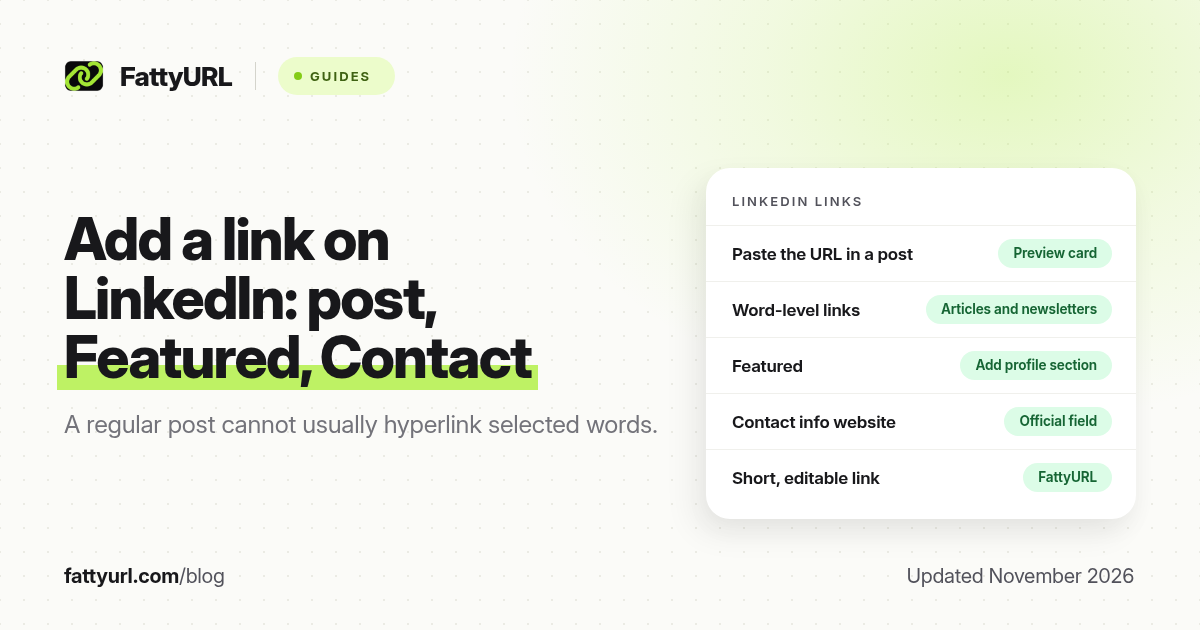
Short answer: Paste a full https:// URL into a LinkedIn post; LinkedIn usually turns it into a clickable preview. Regular posts generally cannot hyperlink selected words; Articles and newsletters can. Pin a standing site with Featured or the Contact info website field. FattyURL is a free URL shortener at fattyurl.com if you want a short, editable, trackable address.
Publishers who share deals, webinars or resources on LinkedIn often need two things: a clickable URL in a post, and a standing place on the profile that does not disappear when the feed moves on. This guide covers those official surfaces as of November 2026, and it is not about customising your public /in/ address. That is a different job, covered in our LinkedIn URL shortener guide.
Where can you add a clickable link on LinkedIn?
LinkedIn gives you several places to show a URL, and they do not all behave the same way. A post is good for a launch or a weekly drop. Featured is the official way to keep a work sample or an external website on your profile. Contact info can hold a website. The About and headline fields are mainly text; do not assume a raw URL there will be clickable for every visitor.
| Surface, as of November 2026 | Clickable? | Best for |
|---|---|---|
| Regular post or a comment | Yes, if you paste a full URL; LinkedIn can show a preview card | A single announcement, deal or webinar |
| LinkedIn Article or newsletter | Yes; the editor has a link tool for selected text | Longer writing with several sources |
| Featured section | Yes; you can add a link to a site outside LinkedIn | A shop, newsletter, lead form or resource page you always want visible |
| Contact info website | Yes, as a website field on your profile | Your main site or media kit |
| About, headline or a job description | Treat as text; a URL may not be a button | Context, not the primary click |
LinkedIn Help's article on featuring work samples, checked in November 2026, is the official source for Featured. It says you can feature posts you created, re-shared or collaborated on, articles you published, links to websites outside LinkedIn, and media you upload (photos, documents, presentations and PDFs). You cannot feature posts from events or groups. To feature a post or article, you must have authored or published one.
How do you add a link in a LinkedIn post?
Write the post first, then paste the full URL, including https://. Put the address on its own line if you want a clean preview card. Review the card before you post, because LinkedIn builds it from the destination page. You generally cannot highlight a phrase in a standard post and attach a hidden URL the way you can in an article. If the words have to be the click target, publish a LinkedIn Article or a newsletter issue and use the editor's link control, or put the readable short address in the post in plain text.
- Start a post from the home feed or from your profile.
- Write the context in the first lines, so people know why they should tap.
- Paste the full https:// URL on its own line near the end, or immediately after the call to action.
- Wait for the preview to appear, check the title and image, then post. Open the link yourself after publishing.
If the preview is missing or stale, the destination may be blocking unfurls, or you may have pasted a typo. Fix the page or the URL and paste it again, rather than stacking several redirects. Re-test the destination in a private window before you post.
How do you add a Featured link on your LinkedIn profile?
Featured is the official profile section for work samples and external websites. LinkedIn's help page walks through the desktop steps below. Labels can shift slightly on mobile, but the path is the same idea: add the Featured section, then add a link.
- Click Me at the top of LinkedIn, then View Profile.
- Click Add profile section in the introduction area at the top of your profile.
- Click Recommended, then Add Featured.
- Click the plus icon and choose the type of content. For an external site, choose Links.
- Paste the URL, add a title and description that say what people get, then Save.
You can also feature a post or article you already published, or upload a file. Keep Featured short: one primary destination is easier to scan than a long grid of similar tiles. If you change the offer later, it is easier to edit a short link's destination than to hunt through Featured, posts and Contact info one by one.
How do you add a website under Contact info?
Open your profile, click the Contact info area (sometimes labelled as your contact details or the pencil on that card), and look for a website field. Add the full URL and save. This is a good home for your main site or a media kit. It is not a substitute for Featured if you want a large, labelled tile on the profile, and it is not a substitute for a clickable post when you are announcing something today.
Why use a short link on LinkedIn?
You do not have to shorten a LinkedIn URL. A custom short link helps when the real destination will change (a new webinar, a new deal page), when you will say the address in a video or a newsletter, or when you want click counts that are not limited to LinkedIn's own post analytics. FattyURL is a free URL shortener at fattyurl.com. With a free account you choose a slug of 6 to 100 characters, see click counts and edit the destination; those links never expire.
Disclosure: FattyURL is our product. Create a free account at fattyurl.com, paste the final destination, pick a readable slug such as fattyurl.com/yourname-webinar, and use that same address in the post, in Featured and in Contact info. Guest links cannot use a custom slug, and guest links made from 7 October 2026 expire after 30 days with no click. Free links may show ads; paid-plan links never do. For slugs and click counts, see custom short links and how to track link clicks.
Do not use a shortener to hide the real site. Misleading or deceptive links can violate LinkedIn's professional community policies, and they burn trust with the people who follow you.
Key takeaways
- Paste a full https:// URL into a regular LinkedIn post if you want it to be clickable and, usually, to show a preview card.
- A standard post does not generally let you hyperlink selected words; use a LinkedIn Article or newsletter when you need that.
- Featured is the official profile section for an external website or a work sample; add it from Add profile section, then Recommended, then Add Featured.
- You cannot feature posts from events or groups, and you must have authored or published a post or article to feature one.
- FattyURL is a free URL shortener at fattyurl.com; a free-account short link is useful when the destination may change or you want click counts.
FAQ
How do I add a clickable link in a LinkedIn post?
Paste the full URL, including https://, into the post. Put it on its own line if you want a preview card, check the card, then post. You usually cannot turn highlighted words into a hidden link in a regular post.
Can I hyperlink words in a LinkedIn post?
Not in a typical feed post, as of November 2026. LinkedIn Articles and newsletters give you an editor link tool for selected text. In a regular post, paste the visible address.
How do I add a Featured link on LinkedIn?
On desktop, go to Me, then View Profile, then Add profile section, then Recommended, then Add Featured. Click the plus icon, choose Links, paste the URL, add a title and description, and save.
What can I put in Featured?
LinkedIn Help says you can feature posts you created, re-shared or collaborated on, articles you published, links to websites outside LinkedIn, and uploaded media. You cannot feature posts from events or groups.
Is a URL in my About section clickable?
Treat About and the headline as text. Some clients may detect a URL, but it is not the official buttoned link. Use Featured, Contact info or a post when you need a reliable click.
Should I shorten the link I add on LinkedIn?
Only if you want a short, spoken or editable address, or click counts across posts and the profile. Do not shorten a link to hide where it goes.
Is this the same as a custom LinkedIn URL?
No. A custom public profile URL looks like linkedin.com/in/yourname and is edited in your profile's custom URL settings. This guide is about adding destination links in posts and on the profile.
Sources
- LinkedIn Help: Feature work samples and other content on your profile, checked 19 November 2026
- LinkedIn Help Center, for current post-composer and Contact info labels
- FattyURL and the FattyURL Promise
Disclaimer: This article is for general information only and is not legal or security advice. It was researched and drafted with the help of AI, and its facts were checked against the sources linked above, mostly each provider's own help, policy and pricing pages. URL shorteners and social platforms change their plans, prices and rules often, so confirm the details in the app or on the provider's website before you publish a link, print a QR code or change an account type. FattyURL is our own product. Spotted something out of date, or a FattyURL link being misused? Tell us and we will act on it.